# Braintree

Integrate Braintree with Churn Solution.

| Product | Status |
|---|---|
| Cancellation Flows | Supported |
| Payment Recovery | Not available |
| Reactivation Campaigns | Not available |

## Cancellation Flows on Braintree (Supported)

Imports customers, subscriptions, plans and discounts through your API key, and receives subscription events through a webhook. Pause and discount are emulated with two discounts you create in Braintree (see below). Cancellation can be immediate or at the end of the billing period.

### Integration steps

1. **Connect your Braintree account with Churn Solution**

   Once you sign up for a Churn Solution account, you can connect your company with your live Braintree account through the Network page, using your public and private keys.

   #### Step 1: Braintree user with proper permissions

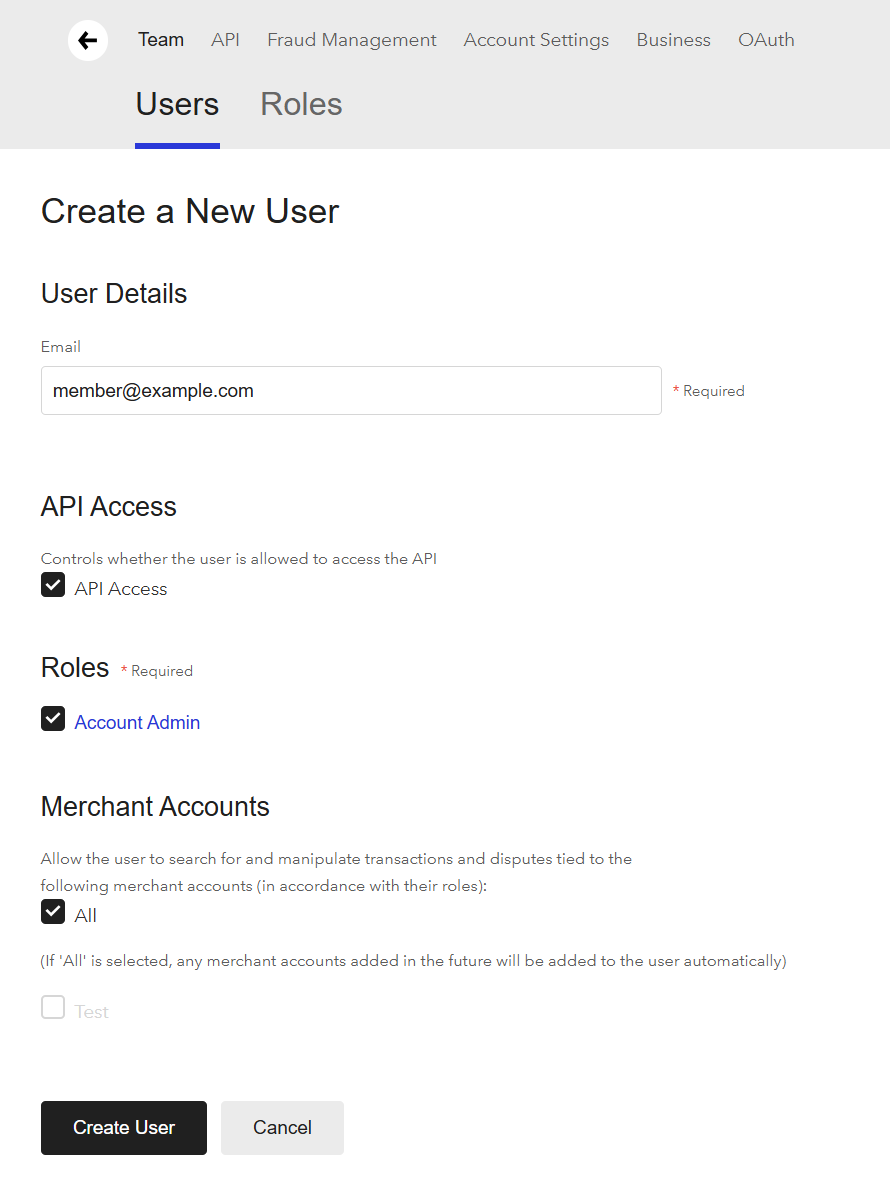
   The user whose keys you provide needs admin rights or the necessary role and permissions. API keys are tied to a specific user; you can see your users on the Braintree **Team** page.

   **Option A: Use an Account Admin**

   Ensure you are logged in as a user with **Account Admin** and **API Access** permissions.
   ![Creating a user with API Access and the Account Admin role.](https://churnsolution.com/wp-content/themes/astra-child/assets/images/docs/braintree-create-user.png)

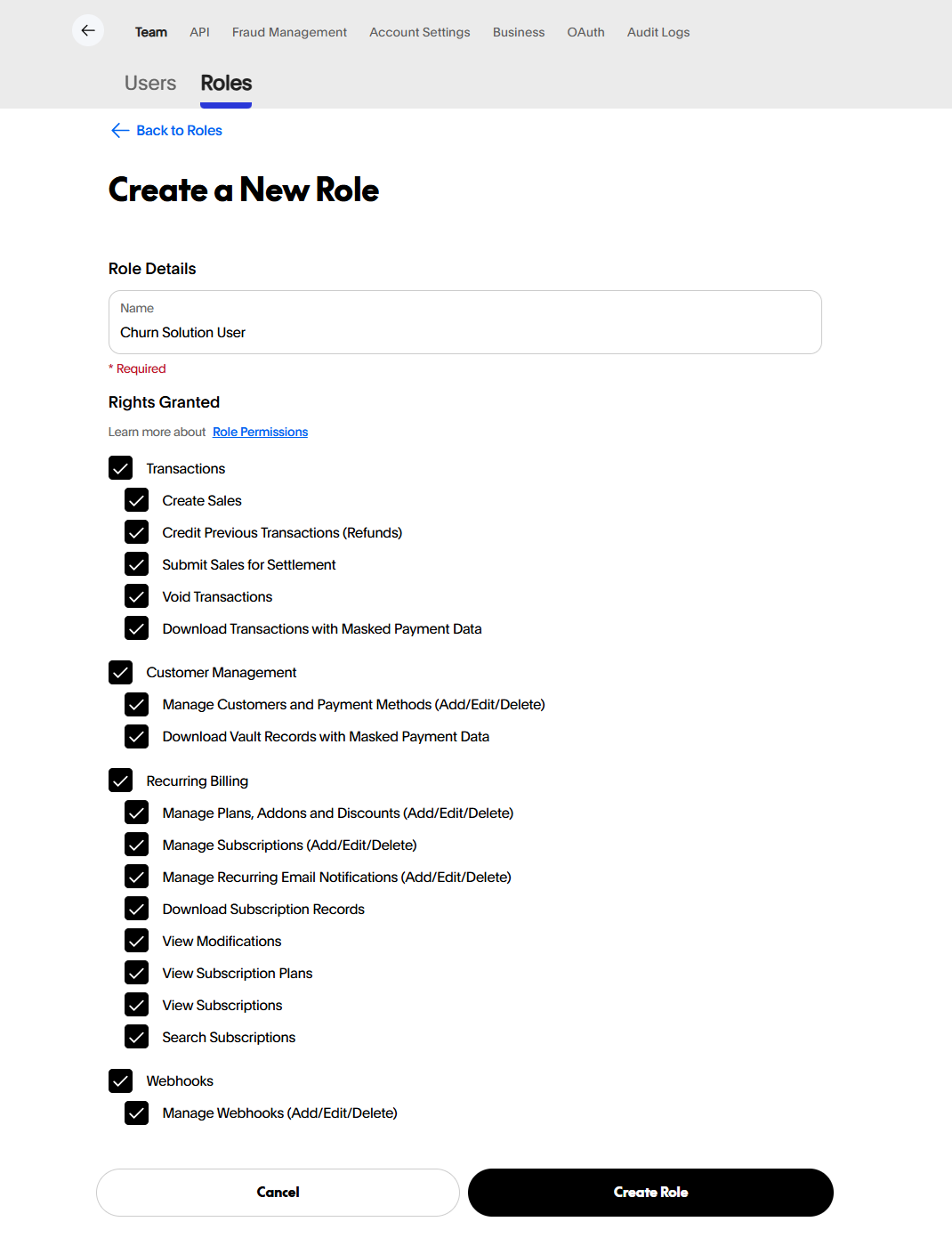
   **Option B: Create a new user and role for Churn Solution**

   If you'd prefer to create a new user and role, ensure it has the permissions listed below.

   **Required role permissions**

   - Transactions
   - Customer Management
   - Recurring Billing
   - Webhooks
   ![Example of a role with sufficient permissions.](https://churnsolution.com/wp-content/themes/astra-child/assets/images/docs/braintree-new-role.png)

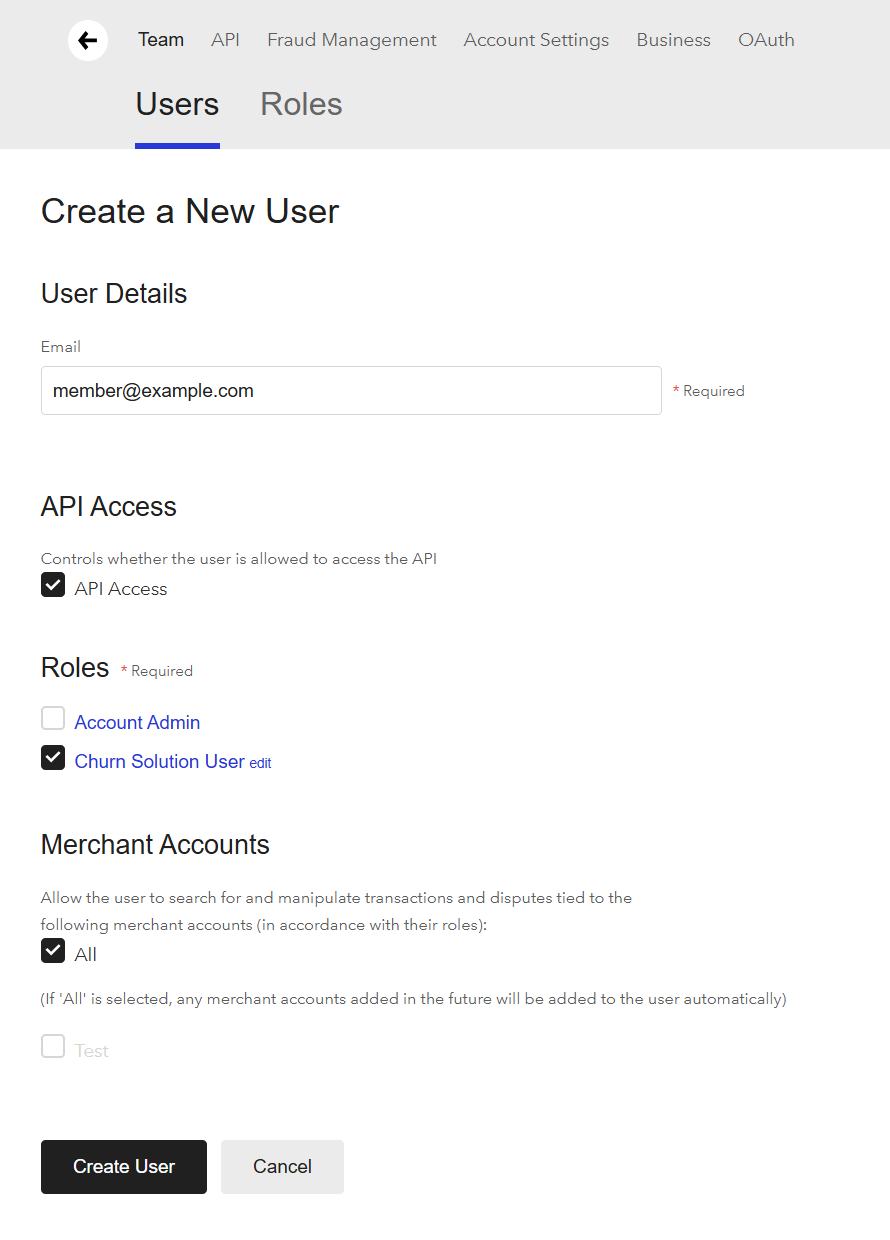
   **Required user permissions**

   - API Access
   - Roles: Account Admin, or the Churn Solution role
   - Merchant Accounts: All
   ![A non-admin user with the Churn Solution role.](https://churnsolution.com/wp-content/themes/astra-child/assets/images/docs/braintree-non-admin.png)

   #### Step 2: Generate an API key

   Navigate to API settings by clicking the gear icon in the top right corner and selecting **API**. Click **+ Generate New API Key** to create a new key. Click **View** next to your new API key to reveal the private and the public key.

   #### Step 3: Add API credentials to Churn Solution

   The public key and private key can be connected to your Churn Solution account on the **Billing Provider Settings** page, or via the **Manage Connection** switcher on the dashboard by adding a new connection.

   #### Step 4: Add webhook notifications

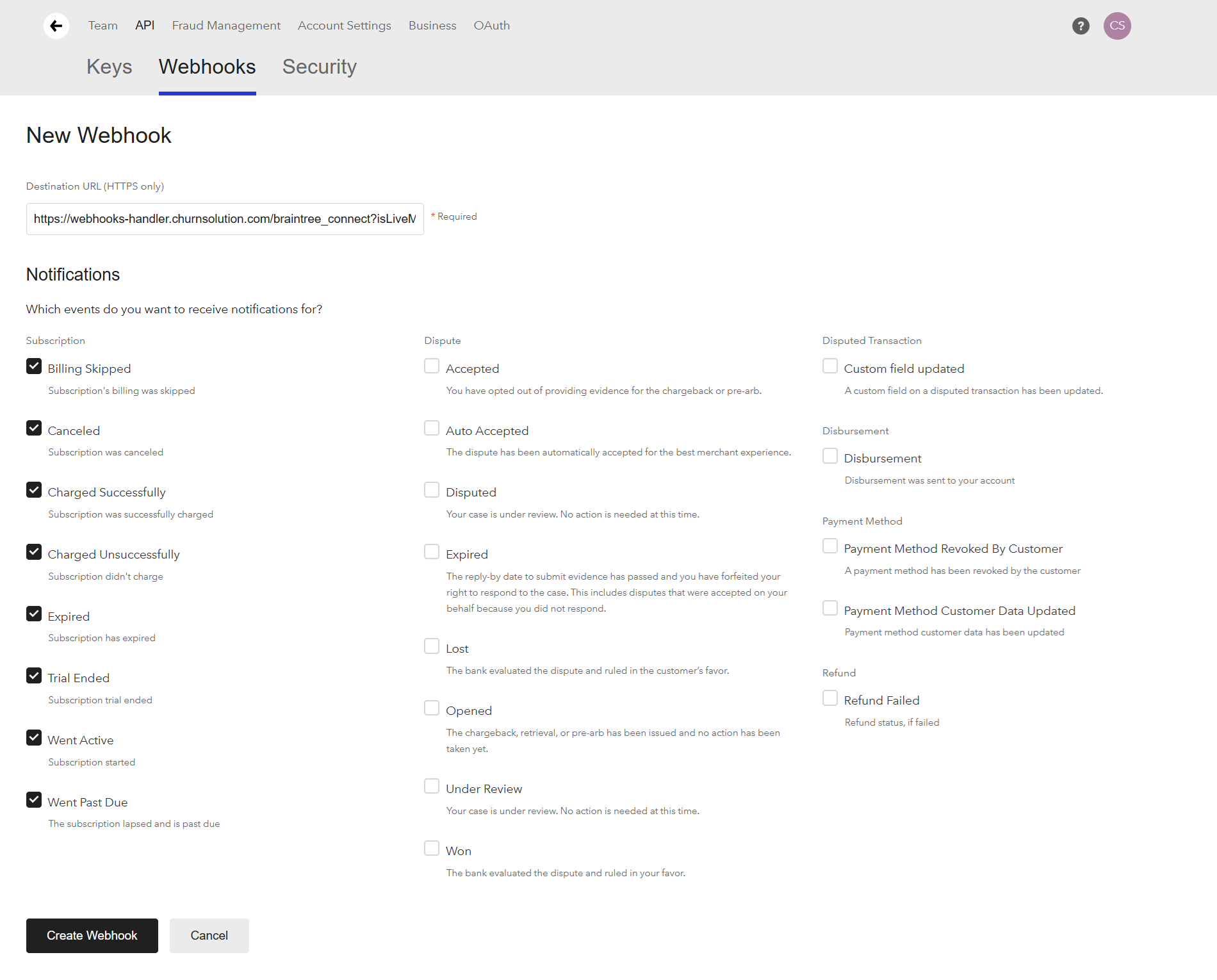
   In Braintree API settings, open the **Webhooks** tab and add a webhook with the URL below, replacing the App ID with yours. Ensure you enable notifications for **all subscription events**. Churn Solution uses it to track reactivations and boosted revenue.

   ```txt
   https://webhooks-handler.churnsolution.com/braintree_connect?appId=YOUR_CHURNSOLUTION_APP_ID
   ```
   ![New webhook in Braintree with all subscription events enabled.](https://churnsolution.com/wp-content/themes/astra-child/assets/images/docs/braintree-webhook.png)

2. **Build the cancellation flow**

   Open [Cancellation Flows](https://app.churnsolution.com/cancel-flows) in the dashboard. You can create multiple cancellation flows from the UI: build the exit survey, map reasons to offers, set the audience, brand it and publish. The flow is ready to show in your site as soon as the script below is in place. See the [Flow builder](/docs/cancellation-flows/flow-builder/) page for more details.

3. **Embed the script**

   Two steps: place the embed code and launch snippet, then (optionally) generate a security token.

   #### Step 1: Place the embed code and launch snippet

   Copy the code below and paste it before the closing `</body>` tag in your app code. It loads Churn Solution, makes it available in the global JS namespace as `window.churnSolution`, and launches the cancellation flow from your cancel button.

   ```html
   <script>
     !function(){
       if (!window.churnSolution || !window.churnSolution.ready) {
         window.churnSolution = { ready: true };
         const s = document.createElement('script');
         s.src = 'https://app.churnsolution.com/sdk/index.min.js';
         s.async = true;
         const e = document.getElementsByTagName('script')[0];
         e.parentNode.insertBefore(s, e);
       }
     }();
   </script>
   <script>
     document.getElementById('cancel-button').addEventListener('click', (e) => {
       e.preventDefault();
       window.churnSolution?.run({
         subscriptionId: 'SUBSCRIPTION_ID', // the customer's Braintree subscription ID
         appId: 'APP_ID',
       });
     });
   </script>
   ```

   You can find your **App ID** on the [Integration page](https://app.churnsolution.com/settings/network) after connecting Braintree. The loader alone can go in `<head>`, but the launch snippet must run after the cancel button exists.

   #### Step 2: Generate security token (Optional)

   Use the code below to generate a hash on your server, so that every request sent to Churn Solution is secure. Send the hash to the front end and pass it as `authKey` in the launch call. Your secret key is on the **Account** settings page — keep it on your server, never ship it to the browser.

**Node.js**

   ```js
   const crypto = require('crypto');

   // POST /api/churn-solution  — requires a logged-in user
   app.post('/api/churn-solution', requireAuth, (req, res) => {
     const subscriptionId = req.user.subscriptionId; // from YOUR session, never the request body
     const authKey = crypto
       .createHmac('sha256', process.env.CHURNSOLUTION_SECRET_KEY)
       .update(subscriptionId)
       .digest('hex');
     res.json({ authKey, subscriptionId });
   });
   ```
**Next.js**

   ```ts
   // app/api/churn-solution/route.ts
   import crypto from 'crypto';
   import { getSession } from '@/lib/auth';

   export async function POST() {
     const session = await getSession();
     if (!session) return new Response('Unauthorized', { status: 401 });
     const subscriptionId = session.user.subscriptionId;
     const authKey = crypto
       .createHmac('sha256', process.env.CHURNSOLUTION_SECRET_KEY!)
       .update(subscriptionId)
       .digest('hex');
     return Response.json({ authKey, subscriptionId });
   }
   ```
**Python**

   ```py
   import hmac, hashlib, os
   from flask import Flask, jsonify
   from auth import current_user, login_required

   app = Flask(__name__)

   @app.post("/api/churn-solution")
   @login_required
   def churn_solution():
       subscription_id = current_user().subscription_id
       auth_key = hmac.new(
           os.environ["CHURNSOLUTION_SECRET_KEY"].encode(),
           subscription_id.encode(),
           hashlib.sha256,
       ).hexdigest()
       return jsonify(authKey=auth_key, subscriptionId=subscription_id)
   ```
**PHP**

   ```php
   <?php
   // Laravel route: POST /api/churn-solution (auth middleware)
   Route::post('/api/churn-solution', function () {
       $subscriptionId = auth()->user()->subscription_id;
       $authKey = hash_hmac('sha256', $subscriptionId, env('CHURNSOLUTION_SECRET_KEY'));
       return response()->json(['authKey' => $authKey, 'subscriptionId' => $subscriptionId]);
   })->middleware('auth');
   ```
**Ruby**

   ```rb
   # Rails controller
   class ChurnSolutionController < ApplicationController
     before_action :authenticate_user!

     def create
       subscription_id = current_user.subscription_id
       auth_key = OpenSSL::HMAC.hexdigest('SHA256', ENV.fetch('CHURNSOLUTION_SECRET_KEY'), subscription_id)
       render json: { authKey: auth_key, subscriptionId: subscription_id }
     end
   end
   ```
**Go**

   ```go
   func churnSolutionHandler(w http.ResponseWriter, r *http.Request) {
       user := mustUser(r) // your auth
       mac := hmac.New(sha256.New, []byte(os.Getenv("CHURNSOLUTION_SECRET_KEY")))
       mac.Write([]byte(user.SubscriptionID))
       authKey := hex.EncodeToString(mac.Sum(nil))
       json.NewEncoder(w).Encode(map[string]string{
           "authKey": authKey, "subscriptionId": user.SubscriptionID,
       })
   }
   ```
**Java**

   ```java
   // Spring Boot
   @PostMapping("/api/churn-solution")
   public Map<String, String> churnSolution(@AuthenticationPrincipal AppUser user) throws Exception {
       Mac mac = Mac.getInstance("HmacSHA256");
       mac.init(new SecretKeySpec(System.getenv("CHURNSOLUTION_SECRET_KEY").getBytes(UTF_8), "HmacSHA256"));
       String authKey = HexFormat.of().formatHex(mac.doFinal(user.getSubscriptionId().getBytes(UTF_8)));
       return Map.of("authKey", authKey, "subscriptionId", user.getSubscriptionId());
   }
   ```
**C#**

   ```cs
   // ASP.NET Core minimal API
   app.MapPost("/api/churn-solution", (ClaimsPrincipal user) =>
   {
       var subscriptionId = user.FindFirst("subscription_id")!.Value;
       var key = Encoding.UTF8.GetBytes(Environment.GetEnvironmentVariable("CHURNSOLUTION_SECRET_KEY")!);
       using var hmac = new HMACSHA256(key);
       var authKey = Convert.ToHexString(hmac.ComputeHash(Encoding.UTF8.GetBytes(subscriptionId))).ToLowerInvariant();
       return Results.Ok(new { authKey, subscriptionId });
   }).RequireAuthorization();
   ```

   **Update: launch Churn Solution.** Once your endpoint returns an auth key, add `authKey` to the launch call from Step 1, before `subscriptionId`.

   ```js
   document.getElementById('cancel-button').addEventListener('click', async (e) => {
     e.preventDefault();
     const { authKey, subscriptionId } = await fetch('/api/churn-solution', { method: 'POST' }).then(r => r.json());
     window.churnSolution?.run({
       authKey,            // from your server
       subscriptionId,     // the customer's Braintree subscription ID
       appId: 'APP_ID',
     });
   });
   ```

   Click your cancel button to see the flow.

### Configuration options

Everything you can configure for Cancellation Flows on Braintree.

**Launch options**

Everything below goes in the `options` object of the launch call.

#### Launch methods on Braintree

`run()`, `renew()` and `resume()` read the shared options: `handleAbandon`, `handleClose`, `handleDone`, `record`, `email`, `language`, `font`, `fontUrl` and `customTexts`.

| Method | What it does | Options it reads |
|---|---|---|
| `run()` | Opens the cancellation flow | The options in [SDK options](#braintree-sdk-options-sdk-options), apart from the `renew()` and `resume()` messages |
| `renew()` | Reverses a pending cancellation | The shared options and `cancellationSettings.uncancel_message` |
| `resume()` | Resumes a paused subscription | The shared options and `cancellationSettings.unpause_message` |

The direct pause flow and the [subscription walls](/docs/subscription-walls/) are not supported on Braintree. A pause offer inside a `run()` flow is a different thing and works.

#### SDK options

| Option | Description | Example |
|---|---|---|
| `options.record` | Records the session. On by default. See [Session recording](#braintree-sdk-options-recording) | `record: false` |
| `options.email` | Email of the customer who started the flow | `email: 'jane@example.com'` |
| `options.font` | Font for the flow, overriding the design page. See Custom fonts | `font: 'Roboto'` |
| `options.fontUrl` | Stylesheet URL that loads `font` | `fontUrl: 'https://fonts.googleapis.com/css2?family=Roboto'` |
| `options.customerAttributes` | Values for the custom attributes your audiences segment on. See Custom attributes | `customerAttributes: { Has_Extended_Free_Trial: true }` |
| `options.customTexts` | Replaces default texts in the flow. See Custom texts | `customTexts: { 'Back': 'Retour' }` |
| `options.language` | Forces the flow language, taking priority over every other language source | `language: 'de'` |
| `options.cancellationSettings` | Overrides the saved cancellation term for this session only. See Set cancellation term | `cancellationSettings: { settings: { CANCEL_TIME: { cancellation_time_type: 'IMMEDIATE' } } }` |
| `options.cancellationSettings.settings.CONFIRM_NOT_CANCELLED_ON_ABANDON` | Overrides the saved Show Modal on Abandoned Exit setting for this session only | `cancellationSettings: { settings: { CONFIRM_NOT_CANCELLED_ON_ABANDON: { active: false } } }` |
| `options.cancellationSettings.uncancel_message` | `renew()` only: replaces the success message. Read on the client, never sent to Churn Solution | `cancellationSettings: { uncancel_message: 'Welcome back!' }` |
| `options.cancellationSettings.unpause_message` | `resume()` only: replaces the success message. Read on the client, never sent to Churn Solution | `cancellationSettings: { unpause_message: 'Welcome back!' }` |
| `options.handleCancel` | Called when the customer cancels | Takes `(customer, cancelFlowInfo)` |
| `options.handleAbandon` | Called when the customer leaves the flow before finishing it | Takes `(customer, cancelFlowInfo)` |
| `options.handleDone` | Called when the customer closes the success screen | Takes `(customer, cancelFlowInfo)` |
| `options.handleClose` | Called whenever the modal closes, for any reason | Takes `(customer, cancelFlowInfo)` |
| `options.handlePause` | Custom pause logic callback | Takes `({ pausePeriod }, customer, cancelFlowInfo)` |
| `options.handleCoupon` | Custom coupon logic callback | Takes `({ code }, customer, cancelFlowInfo)` |
| `options.handleSwitchPlan` | Custom switch-plan logic callback | Takes `({ plan }, customer, cancelFlowInfo)` |
| `options.handleSwitchPlanWithCoupon` | Custom switch-plan-with-coupon logic callback | Takes `({ plan, code }, customer, cancelFlowInfo)` |
| `options.autoCancel` | Auto-handle cancellation. On by default | `false` (to use custom handler) |
| `options.autoPause` | Auto-handle pausing. On by default | `false` (to use custom handler) |
| `options.autoCoupon` | Auto-handle coupons. On by default | `false` (to use custom handler) |
| `options.autoSwitchPlan` | Auto-handle plan switching. On by default | `false` (to use custom handler) |
| `options.autoSwitchPlanWithCoupon` | Auto-handle plan switching with a coupon. On by default | `false` (to use custom handler) |

> **Note:**
> A Braintree pause is a 100%-off repeating discount. You must create a discount with the code `CHURNSOLUTION_PAUSE`, or the flow builder disables the Pause offer.

> **Note:**
> Braintree refuses every offer on a **Past Due** subscription, so Churn Solution strips the coupon, switch plan and switch plan with coupon offers before the customer sees them.

##### Full example

A `run()` call that sets every option it reads:

```js
document.getElementById('cancel-button').addEventListener('click', function () {
    window.churnSolution?.run({
        authKey, // hash generated by your server
        subscriptionId, // your subscription ID from your payment provider
        appId: 'APP_ID', // your App ID
        options: {
            record: true, // default true, switch to false to turn off recording
            email: 'jane@example.com', // User email that initiates the cancel flow
            font: 'Roboto',
            fontUrl: 'https://fonts.googleapis.com/css2?family=Roboto:wght@400;500;700&display=swap',
            language: 'de',
            customerAttributes: {
                Has_Extended_Free_Trial: false,
            },
            customTexts: {
                "Back": "Zurück",
                "Next": "Weiter",
            },
            cancellationSettings: {
                settings: {
                    CANCEL_TIME: {
                        cancellation_time_type: 'END_OF_BILLING_PERIOD', // 'IMMEDIATE' | 'END_OF_BILLING_PERIOD'
                    },
                    CONFIRM_NOT_CANCELLED_ON_ABANDON: {
                        active: true, // show the modal when the customer leaves early
                    },
                },
            },
            handleCancel: (customer, cancelFlowInfo) => {
                // cancel callback
            },
            handleAbandon: (customer, cancelFlowInfo) => {
                // abandon callback
            },
            handleDone: (customer, cancelFlowInfo) => {
                // success screen closed callback
            },
            handleClose: (customer, cancelFlowInfo) => {
                // modal closed callback
            },
            handlePause: ({pausePeriod}, customer, cancelFlowInfo) => {
                // pause callback
            },
            handleCoupon: ({code}, customer, cancelFlowInfo) => {
                // coupon/discount callback
            },
            handleSwitchPlan: ({plan}, customer, cancelFlowInfo) => {
                // switch plan callback
            },
            handleSwitchPlanWithCoupon: ({plan, code}, customer, cancelFlowInfo) => {
                // switch plan with coupon callback
            },
            // Default true. Set any of these to false to make
            // the matching handler responsible for the action
            autoCancel: true,
            autoPause: true,
            autoCoupon: true,
            autoSwitchPlan: true,
            autoSwitchPlanWithCoupon: true,
        },
    });
});
```

#### Add custom fonts

By default, Churn Solution uses the font selected on the [design page](https://app.churnsolution.com/design). However, you can override this with any font you prefer for your cancellation flow. To do this, pass two parameters to the sessions API: `font` and `fontUrl`.

```js
document.getElementById('cancel-button').addEventListener('click', function () {
    window.churnSolution?.run({
        authKey, // hash generated by your server
        subscriptionId, // your subscription ID from your payment provider
        appId: 'APP_ID', // your App ID
        options: {
            record: true,
            email: '',
            font: 'Roboto', // Font example
            fontUrl: 'https://fonts.googleapis.com/css2?family=Roboto:wght@400;500;700&display=swap', // Font URL example
        },
    });
});
```

#### Enable / disable session recording

Session recording is enabled by default. You have the option to disable session recording by setting the `record` parameter to `false` in the `options` of the launch call from the installing section.

```js
window.churnSolution?.run({ authKey, subscriptionId, appId: 'APP_ID', options: { record: false } });
```

#### Set cancellation term

Learn how Churn Solution manages the cancellation of your customers' subscriptions. By default, each flow follows the option saved on the [configuration page](https://app.churnsolution.com/settings/configuration#Cancellation-Terms).

- **Immediate:** choose this option for instant subscription cancellation. The customer's subscription is terminated immediately upon cancelling.
- **End of billing period:** select this option to handle cancellations at the end of the current billing period. Customers keep access until the end of their paid subscription duration.

![Cancellation Terms on Braintree: Immediate or End of Billing Period](https://churnsolution.com/wp-content/themes/astra-child/assets/images/docs/braintree-cancellation-terms.png)

> **Note:**
> Each flow follows the term saved on the configuration page, but you can override it for a single customer by passing `cancellationSettings` in the launch call. The override applies to that session only and does not change your saved configuration.

```js
document.getElementById('cancel-button').addEventListener('click', function () {
    window.churnSolution?.run({
        authKey, // hash generated by your server
        subscriptionId, // your subscription ID from your payment provider
        appId: 'APP_ID', // your App ID
        options: {
            cancellationSettings: {
                settings: {
                    CANCEL_TIME: {
                        cancellation_time_type: 'IMMEDIATE',
                    },
                },
            },
        },
    });
});
```

| Term on the configuration page | `cancellation_time_type` | Extra field |
|---|---|---|
| Immediate | `'IMMEDIATE'` | — |
| End of billing period | `'END_OF_BILLING_PERIOD'` | — |

Values are case-sensitive. **Custom is supported on Stripe only.** On Braintree, Churn Solution drops a `'CUSTOM_DATE'` override and uses the stored term. End of billing period is not supported on WooCommerce or Recurpay.

> **Note:**
> On a **Past Due** Braintree subscription, end of billing period becomes an **immediate** cancel.

Example: cancel trial users immediately and everyone else at the end of the period:

```js
options: {
    cancellationSettings: {
        settings: {
            CANCEL_TIME: {
                cancellation_time_type: isOnTrial ? 'IMMEDIATE' : 'END_OF_BILLING_PERIOD',
            },
        },
    },
},
```

#### Custom attributes

When configuring the cancel flow, you can define custom attributes to effectively segment your customers:

1. **Create the attribute**

   Within the [Configuration Settings](https://app.churnsolution.com/settings/configuration) tab, or directly from the cancellation flow in the Audience page, create a custom attribute.

2. **Use it in a flow**

   Apply flows for the specified segments within your cancel flow. For example, target customers who used a free trial and have already extended it.

3. **Pass it at launch**

   When invoking `window.churnSolution.run()`, include `Has_Extended_Free_Trial` under `options.customerAttributes`.

```js
document.getElementById('cancel-button').addEventListener('click', function () {
    window.churnSolution?.run({
        authKey, // hash generated by your server
        subscriptionId, // your subscription ID from your payment provider
        appId: 'APP_ID', // your App ID
        options: {
            customerAttributes: {
                Has_Extended_Free_Trial: false // or true, based on user's status
            },
            record: true,
            email: '',
        },
    });
});
```

Video walkthrough: [Custom attributes and segmentation on YouTube](https://www.youtube.com/watch?v=uBfVr978DQA).

##### Customer segmentation based on metadata

> **Warning:**
> On Braintree, custom attributes are evaluated at run time only: pass their values in `options.customerAttributes` when you call `run()`. Braintree has no customer or subscription metadata for Churn Solution to read.

**Renew, resume & pause**

Two more entry points beside `run()`.

#### Subscription renewal configuration

This feature allows you to win back customers who have cancelled their subscription with a cancellation setting of "at the end of the billing period" (the cancellation has not happened yet). Configure and display a call-to-action (CTA) to let your customers renew their subscription using these settings on the configuration page:

- **Immediate renewal:** once the user clicks the renew CTA, their cancellation is reverted directly.
- **Renew with customer confirmation:** set a headline, message and CTA text for the pop-up shown when the user clicks the renew CTA.
- **Renew with special offer:** add a headline, message, CTA text, and offer users a coupon that is applied to their first payment.

![Renew settings on the configuration page.](https://churnsolution.com/wp-content/themes/astra-child/assets/images/docs/renew-settings.png)

Once you've chosen the configuration, implement the renewal on your site. Typically you attach an event listener to your **Renew Plan** button. The following code calls a function on the Churn Solution side that handles the renewal:

```js
document.getElementById('renew-button').addEventListener('click', function () {
    window.churnSolution?.renew({
        authKey, // hash generated by your server
        subscriptionId, // your subscription ID from your payment provider
        appId: 'APP_ID', // your App ID
        options: {
            record: true,
            email: '',
        },
    });
});
```

To replace the success message, pass `cancellationSettings.uncancel_message`. `renew()` reads `cancellationSettings` only for the success message, on the client. Nothing in it is sent to Churn Solution.

#### Resume configuration

This feature enables you to offer your customers the option to resume their subscription after they have paused payment collection. Configure and display a CTA to let your customers resume using these settings on the configuration page:

- **Immediate resume:** once the user clicks the resume CTA, their subscription is resumed directly.
- **Resume with customer confirmation:** set a headline, message and CTA text for the pop-up shown when the user clicks the resume CTA.

![Resume settings on the configuration page.](https://churnsolution.com/wp-content/themes/astra-child/assets/images/docs/resume-settings.png)

Attach an event listener to your **Resume Plan** button. The following code calls a function on the Churn Solution side that handles the resume process:

```js
document.getElementById('resume-button').addEventListener('click', function () {
    window.churnSolution?.resume({
        authKey, // hash generated by your server
        subscriptionId, // your subscription ID from your payment provider
        appId: 'APP_ID', // your App ID
        options: {
            record: true,
            email: '',
        },
    });
});
```

To replace the success message, pass `cancellationSettings.unpause_message`. `resume()` reads `cancellationSettings` only for the success message, on the client. Nothing in it is sent to Churn Solution.

#### Pause flow

The pause flow is not supported on Braintree. A pause offer inside a `run()` flow still works.

**Callbacks & custom logic**

Run your own billing code when a customer accepts an offer or cancels, instead of letting Churn Solution act in your gateway.

#### The model

Every action has a pair: a `handleX` callback and an `autoX` flag.

**autoX: true (default)**

Churn Solution performs the action in your gateway. Your `handleX`, if defined, is called afterwards as a notification.
**autoX: false**

Churn Solution does nothing in the gateway. Your `handleX` must perform the action and resolve or reject.

> **Warning:**
> A handler on its own never stops Churn Solution. Always set the matching `autoX: false` when you take over.

#### The handlers object

This object contains the action handlers with a flag for each action to specify whether the handler is a replacement for the Churn Solution handler or extra functionality. If any of the `auto` props is true, its action is handled from the Churn Solution side, and your callback for that event is also called when the action executes. You can also send the email of the customer who started the cancellation flow.

```js
{
    record: true, // default true, switch to false to turn off recording
    email: '', // User email that initiates the cancel flow
    handleCancel: (customer, cancelFlowInfo) => {
        // cancel callback
    },
    handleAbandon: (customer, cancelFlowInfo) => {
        // abandon callback
    },
    handleDone: (customer, cancelFlowInfo) => {
        // success screen closed callback
    },
    handleClose: (customer, cancelFlowInfo) => {
        // modal closed callback
    },
    handlePause: ({pausePeriod}, customer, cancelFlowInfo) => {
        // pause callback
    },
    handleCoupon: ({code}, customer, cancelFlowInfo) => {
        // coupon/discount callback
    },
    handleSwitchPlan: ({plan}, customer, cancelFlowInfo) => {
        // switch plan callback
    },
    handleSwitchPlanWithCoupon: ({plan, code}, customer, cancelFlowInfo) => {
        // switch plan with coupon callback
    },
    // If any of the below props is true
    // its action will be handled from Churn Solution side
    autoCancel: false,
    autoPause: false,
    autoSwitchPlan: false,
    autoSwitchPlanWithCoupon: false,
    autoCoupon: false,
}
```

#### Signatures

Offer handlers are called as `handler(offer, customer, cancelFlowInfo)`, where `offer` carries `offerType` plus the fields below. `handleCancel` and the lifecycle callbacks receive `(customer, cancelFlowInfo)`.

| Handler | `offer` fields |
|---|---|
| `handlePause` | `pausePeriod` (months) |
| `handleCoupon` | `code` |
| `handleSwitchPlan` | `plan` |
| `handleSwitchPlanWithCoupon` | `plan`, `code` |

Return a Promise. `resolve({ title, message })` replaces the success-screen text; `reject({ message })` shows an error and keeps the subscription unchanged.

> **Note:**
> Braintree refuses every offer on a **Past Due** subscription, so Churn Solution strips the coupon, switch plan and switch plan with coupon offers before the customer sees them, and their handlers are not called.

#### Example: custom cancel and pause

```js
window.churnSolution?.run({
  authKey, subscriptionId, appId: 'APP_ID',
  options: {
    handleCancel: (customer, flowInfo) => new Promise(async (resolve, reject) => {
      try {
        await fetch('/api/billing/cancel', { method: 'POST', body: JSON.stringify({ subscriptionId }) });
        resolve({ message: 'Your account has been cancelled. You will not be billed again.' });
      } catch (e) {
        reject({ message: 'We could not cancel your account. Please contact support.' });
      }
    }),
    handlePause: ({ pausePeriod }, customer, flowInfo) => new Promise(async (resolve, reject) => {
      try {
        await fetch('/api/billing/pause', { method: 'POST', body: JSON.stringify({ subscriptionId, months: pausePeriod }) });
        resolve({ message: `Paused for ${pausePeriod} month${pausePeriod === 1 ? '' : 's'}. You will not be billed until you resume.` });
      } catch (e) {
        reject({ message: 'We could not pause your account. Please contact support.' });
      }
    }),
    autoCancel: false,
    autoPause: false,
  },
});
```

#### Lifecycle callbacks

| Callback | Fires when |
|---|---|
| `handleAbandon` | The customer leaves the flow before finishing |
| `handleDone` | The customer closes the success screen |
| `handleClose` | The modal closes for any reason |

**Texts & languages**

Override any default string in the cancellation, resume or renewal flows, or force a language.

#### Force a language

```js
options: { language: 'de' }
```

#### Custom texts

Pass `customTexts` as a map of *original text → replacement*. Only the keys you include change.

```js
window.churnSolution?.run({
  authKey, subscriptionId, appId: 'APP_ID',
  options: {
    customTexts: {
      'Back': 'Retour',
      'Next': 'Suivant',
      'Decline Offer': "Refuser l'offre",
      'Accept Offer': "Accepter l'offre",
      'Done': 'Terminé',
      'Pause Subscription': "Mettre l'abonnement en pause",
      'Cancel Subscription': "Annuler l'abonnement",
      'Extend Free Trial': "Prolonger l'essai gratuit",
      'Claim your offer': 'Réclamez votre offre',
      'Switch Plan': 'Changer de forfait',
      'No, Back': 'Non, retour',
      'Yes, Leave': 'Oui, quitter',
      'Chat on WhatsApp': 'Discuter sur WhatsApp',
      'Send an Email': 'Envoyer un e-mail',
    },
  },
});
```

##### All overridable keys

**Show the full list (90+ strings)**

```txt
"Back", "Next", "Decline Offer", "Done", "Cancel", "Cancel Subscription", "Close", "Yes, Leave", "No, Back",
"Powered by", "Cancellation Guaranteed by", "Offer Guaranteed by",
"You are already paused", "You won't be billed until your subscription resumes",
"Subscription Cancelled.", "Subscription Uncancelled.", "Subscription Resumed.", "Subscription paused.", "Subscription Activated.",
"You can enjoy all our features again!", "Something went wrong!", "Please refresh your page and try again",
"Offer applied", "Successfully claimed offer", "Switch Plan", "Successfully switched plan",
"Successfully switched plan with a discount.", "Extend Free Trial", "Successfully extended your free trial",
"Unable to Recover Payment", "Unable to Switch Plan", "Please contact customer support for assistance",
"Submit the form to proceed with your cancellation", "Go To Form", "Write your answer...", "Answer...", "empty option",
"Minimum number of characters:", "Day", "Days", "day", "days", "week", "weeks", "month", "months", "year", "years",
"billing cycle", "billing cycles", "Choose offer type", "Pause Subscription", "Accept", "Accept Offer", "Claim your offer",
"Switch and Claim Your Offer", "Discover a Better Plan for You", "Claim Your Offer & Switch Plan", "Extend Trial By",
"Chat on WhatsApp", "Send an Email", "Choose how long you want to pause", "Loading...", "Waiting Submit...",
"Limited time offer for", "Enjoy This Discounted Price Forever", "Your subscription is successfully restored",
"Your subscription is successfully resumed", "You won't be billed again.",
"Your subscription is canceled and will end at the end of your current billing period.",
"Your subscription is canceled and will end after", "Your subscription is canceled and will end", "Today", "Can't Cancel",
"Success", "Your action has been successfully done", "Cancellation Incomplete",
"You've started the cancellation process but haven't finished it. Are you sure you want to leave?",
"Oops! something went wrong!", "It seems you have already claimed this coupon", "Offer Already Redeemed",
"Off your next renewal", "Off all of your next renewals", "Off for"
```

#### Custom fonts

By default the flow uses the font chosen on the Design page. Override it per session:

```js
options: {
  font: 'Roboto',
  fontUrl: 'https://fonts.googleapis.com/css2?family=Roboto:wght@400;500;700&display=swap',
}
```

**Google Form confirmation**

Ask customers to fill a Google Form before (or after) they confirm a cancellation. Optional or required.

#### Enable the form

1. **Make the form public**

   Anyone with the link must be able to answer.

2. **Turn it on in the confirmation step**

   In the flow's cancellation confirmation settings, enable the Google Form button, set its text and the form URL.

3. **Optional: require submission**

   Enable "require Google Form submission" to block cancellation until the form is submitted. This needs the validation setup below.

#### Required-submission setup

1. **Add a "Cancellation Bin Code" field**

   A **Short answer** question titled exactly `Cancellation Bin Code`. It is pre-filled with a unique value at runtime. **Important:** inform customers not to edit this field, as the unique value is essential for form validation.

   ![The Cancellation Bin Code field in the Google Form.](https://churnsolution.com/wp-content/themes/astra-child/assets/images/docs/google_form_field.png)

2. **Open the Script editor**

   In the Google Form builder, click the three dots in the upper right corner and select **Script editor**. Paste the script below and save.

   ![Opening the Script editor from the form menu.](https://churnsolution.com/wp-content/themes/astra-child/assets/images/docs/google_form_menu.png)

   ![The script pasted into the Script editor.](https://churnsolution.com/wp-content/themes/astra-child/assets/images/docs/google_form_code.png)

3. **Add a trigger**

   From the same page, click **Triggers** → **Add trigger** and match these settings: function `onFormSubmit`, event source *From form*, event type *On form submit*. Save the trigger so it appears on the triggers page.

   ![Trigger settings.](https://churnsolution.com/wp-content/themes/astra-child/assets/images/docs/google_form_trigger.png)

   ![The saved trigger on the triggers page.](https://churnsolution.com/wp-content/themes/astra-child/assets/images/docs/google_form_trigger_created.png)

4. **Set the confirmation message**

   In the form settings go to **Settings → Presentation → After submission → Confirmation message** and tell customers not to close the form, for example: "Your response has been recorded! Please keep this form open until we process your cancellation. We'll close it automatically when done. Thank you!"

   ![The confirmation message setting.](https://churnsolution.com/wp-content/themes/astra-child/assets/images/docs/google_form_msg.png)

```js
function onFormSubmit(e) {
  const CANCELLATION_BIN_CODE_FIELD = "Cancellation Bin Code";
  const API_URL = 'https://google-form.churnsolution.com/submit';

  const itemResponses = e.response.getItemResponses();
  const cancellationBinCode = itemResponses
    .find(item => item.getItem().getTitle() === CANCELLATION_BIN_CODE_FIELD)
    ?.getResponse();

  if (!cancellationBinCode) {
    Logger.log('Error: Cancellation Bin Code is empty. Aborting API call.');
    return;
  }
  try {
    UrlFetchApp.fetch(API_URL, {
      method: 'post',
      contentType: 'application/json',
      payload: JSON.stringify({ cancellationBinCode }),
    });
  } catch (error) {
    Logger.log('Error during API request: ' + error.message);
  }
}
```

### Offers available on Braintree

- ✓ Pause subscription
- ✓ Apply discount
- ✓ Switch plan
- ✓ Switch plan with offer
- – Extend free trial
- ✓ Contact support (email / WhatsApp)
- ✓ Send to a page

> **Note:**
> These are the offer types available in cancellation flows on Braintree: Coupon, Pause, Switch Plan, Switch Plan With Coupon, Contact and Send To Page. Free-trial extension is not available on Braintree.

### How Braintree is used with Churn Solution

When a customer accepts a pause or discount offer, Churn Solution manages the billing update in Braintree.

#### Pause a subscription

Braintree does not have a native pause feature. Churn Solution emulates a pause by applying a 100% discount temporarily. This is done by creating a discount in your Braintree dashboard with the ID `CHURNSOLUTION_PAUSE`. If a customer chooses to pause their account during the cancellation flow, Churn Solution applies a discount equal to the subscription price, effectively creating a 100% discount for the chosen duration. Use the `handlePause` callback for custom pause logic.

#### Apply discounts

Braintree does not support percentage discounts and has limited customization options for fixed-amount discounts. Churn Solution allows you to overcome these limitations by creating a discount in your Braintree dashboard with the ID `CHURNSOLUTION_BASE_DISCOUNT`. Choose the coupons to offer under **Offers** in your cancellation flow; use the `handleCoupon` callback for custom logic.

![Creating a coupon offer: percentage off, duration and billing cycles.](https://churnsolution.com/wp-content/themes/astra-child/assets/images/docs/braintree-coupon.png)

#### Cancel subscription

Subscriptions are cancelled right away. You can also manage the cancellation settings to cancel at the end of the billing period. Use the `handleCancel` callback for custom logic.

On Braintree only two cancellation terms are available: **Immediate** and **End of billing period** (no custom date).

![Cancellation Terms on Braintree: Immediate or End of Billing Period](https://churnsolution.com/wp-content/themes/astra-child/assets/images/docs/braintree-cancellation-terms.png)

#### Calculating boosted revenues

Boosted revenue is the additional income generated from customers who stayed subscribed rather than cancelling after entering the cancellation flow. Track it on the Churn Solution dashboard, provided the webhook is set up.

### Audience segmentation

Churn Solution imports Customers, Subscriptions, Coupons and Plans from Braintree to build audiences. Available attributes:

- Plan
- Subscription status
- Subscription price
- Subscription start date
- Billing interval
- Subscription age
- Subscription discounts
- Custom attributes

## Payment Recovery on Braintree (Not available)

Not available on Braintree today. Failed-payment emails, smart retries and the payment wall rely on gateway features Braintree does not expose. Ask the team if you need this.

[Contact the team](https://app.churnsolution.com/contact-us)

## Reactivation Campaigns on Braintree (Not available)

Not available on Braintree today. Ask the team if you need win-back campaigns for Braintree customers.

[Contact the team](https://app.churnsolution.com/contact-us)
