







MCP Server
Connect your AI to Churn Solution
Churn Solution MCP server connects AI tools like Claude and ChatGPT directly to your Churn Solution account. Once connected, your AI can search and analyze your cancel flow data metrics, save rates, cancellation reasons, offer performance, and sessions using the same read access as your dashboard.
Setup
Claude
Free, Pro and Max plans
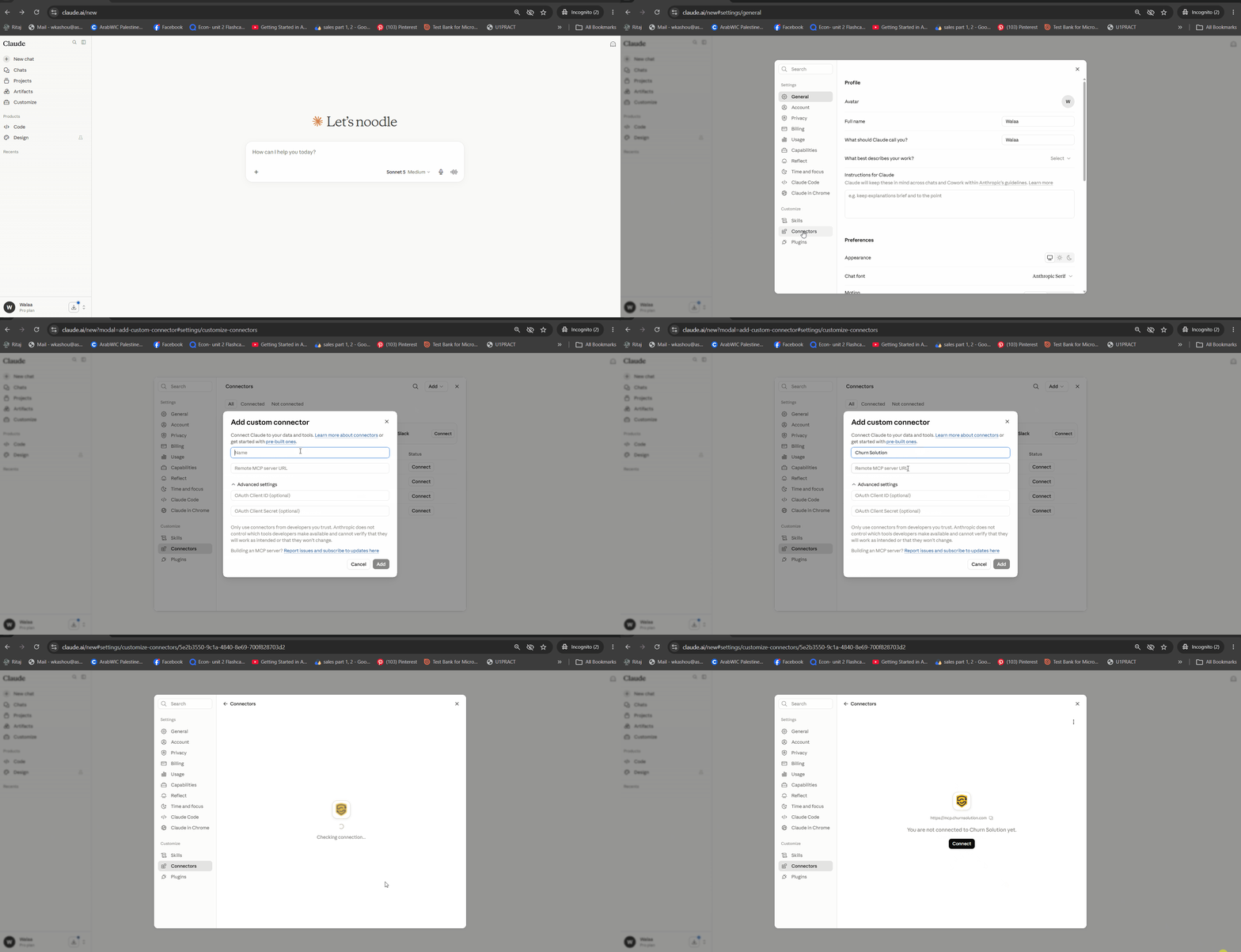
- Go to Settings > Connectors in Claude.
- Click Add, then Add custom connector.
- Enter any name for the connector.
- In the Remote MCP server URL field, enter the URL and click Add:

https://mcp.churnsolution.com- Click Connect.
- Sign in to Churn Solution.
Team and Enterprise plans
On Team and Enterprise plans, an Owner adds the connector once and each member then connects individually.
For Owners:
- Go to Organization settings > Connectors.
- Click Add, then choose Custom > Web.
- Enter the URL and click Add:
https://mcp.churnsolution.comFor members:
- Go to Customize > Connectors.
- Find the Churn Solution connector and click Connect.
- Sign in to Churn Solution.
ChatGPT
Custom MCP connectors require ChatGPT developer mode and are available on Plus, Pro, Business, Enterprise and Edu plans.
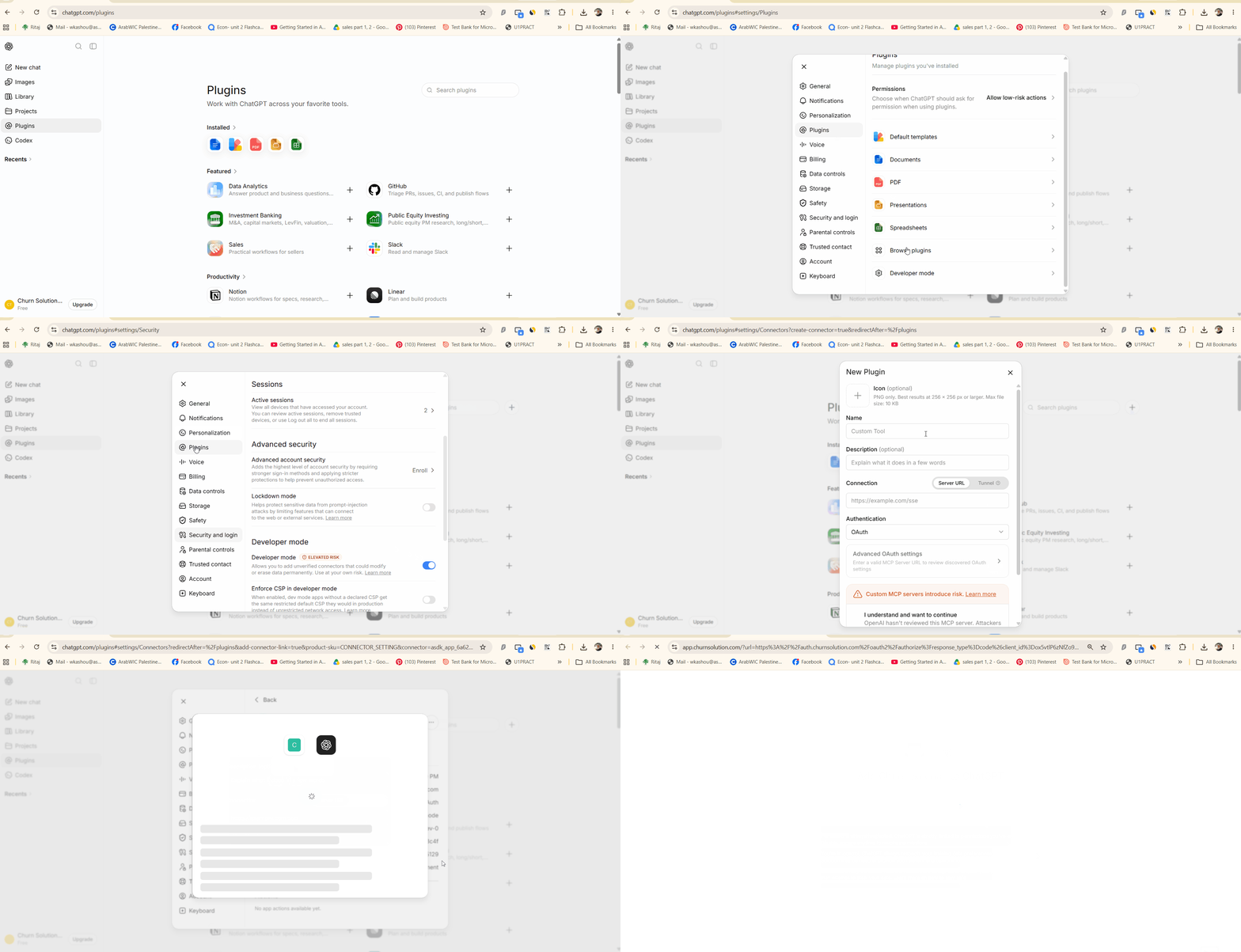
- Go to Settings > Plugins > Advanced settings and turn on Developer mode.
- Go back to Settings > Plugins and click Browse Plugins.
- Click on Add Icon.
- Enter a name and the MCP server URL:
https://mcp.churnsolution.com- Set the authentication mode to OAuth, then click Create.
- Sign in to Churn Solution.
Cursor
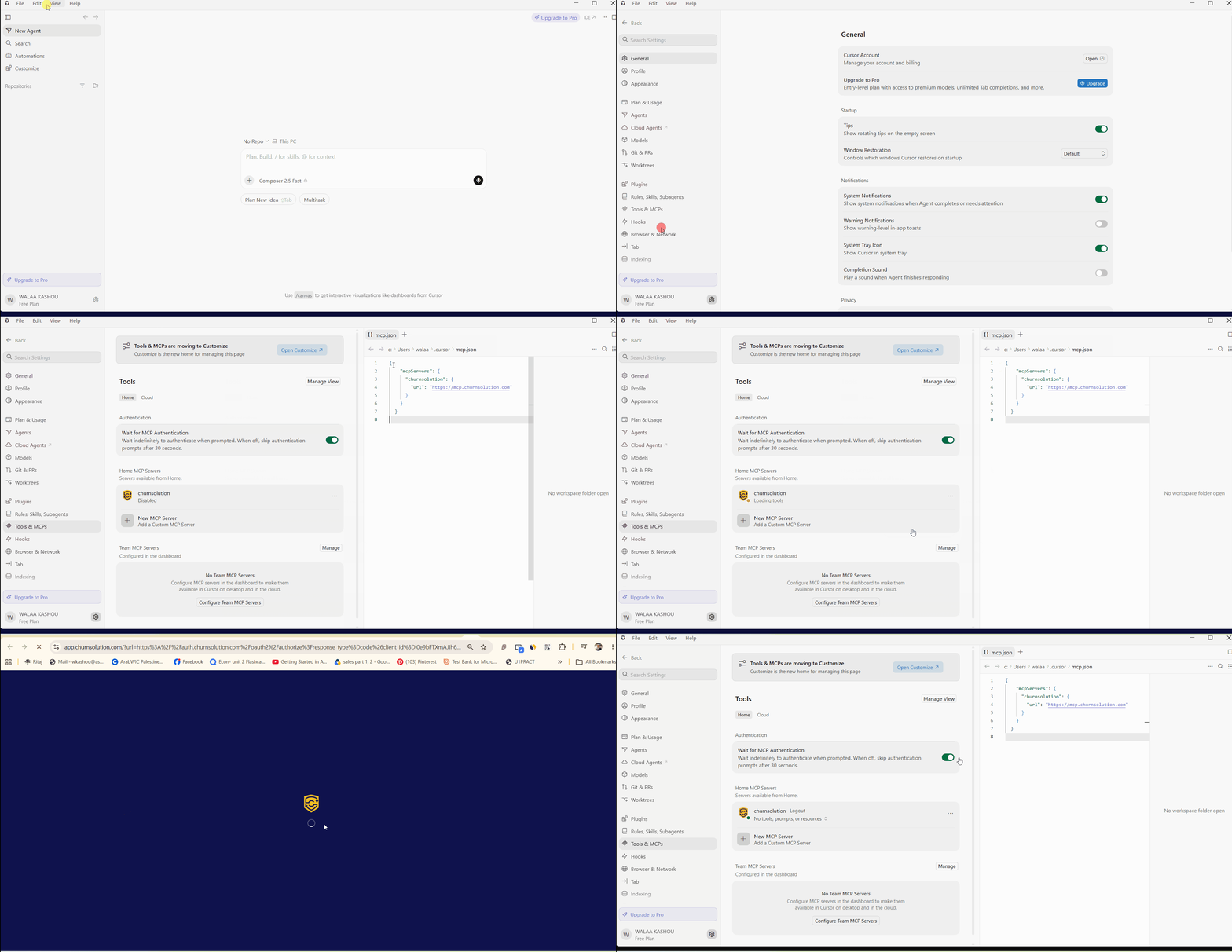
- Open View → Settings → Tools & MCP.
- Paste the following configuration:
{
  "mcpServers": {
    "churnsolution": {
      "url": "https://mcp.churnsolution.com"
    }
  }
}
- Save and restart Cursor. The first time you use a Churn Solution tool, sign in to Churn Solution.
VS Code (GitHub Copilot)
-
Create a
.vscode/mcp.jsonfile in your workspace:
{
  "servers": {
    "churnsolution": {
      "type": "http",
      "url": "https://mcp.churnsolution.com"
    }
  }
}
-
Open the command palette (
Cmd+Shift+P/Ctrl+Shift+P) and run MCP: List Servers. - Start the Churn Solution server and sign in.
Available tools
Once connected, your AI tool can call the following read-only tools. Access follows your dashboard permissions.
| Tool | Description |
|---|---|
get_cancel_flow_metrics |
Retrieve overall performance metrics for your cancel flows. |
get_cancel_flow_outcomes_by_flow
|
Break down cancellation outcomes for a specific cancel flow. |
get_cancel_flow_revenue |
Report revenue retained and lost through your cancel flows. |
get_cancel_flow_save_rate
|
Return the save rate for your cancel flows. |
list_cancel_flow_cancellation_reasons
|
List the reasons customers gave for cancelling. |
list_cancel_flow_cancellation_reasons_by_plan
|
List cancellation reasons grouped by plan. |
list_cancel_flow_offer_performance
|
Show how retention offers performed within your cancel flows. |
list_connections |
List the connected billing and data integrations on your account. |
list_plans |
List the plans configured on your account. |
search_cancel_flow_sessions
|
Search individual cancel flow sessions. |