







Subscription Walls
The Subscription Wall is a system designed to recover revenue by dynamically controlling access to your application when a user's subscription is paused or has a failed payment.
It handles two cases:
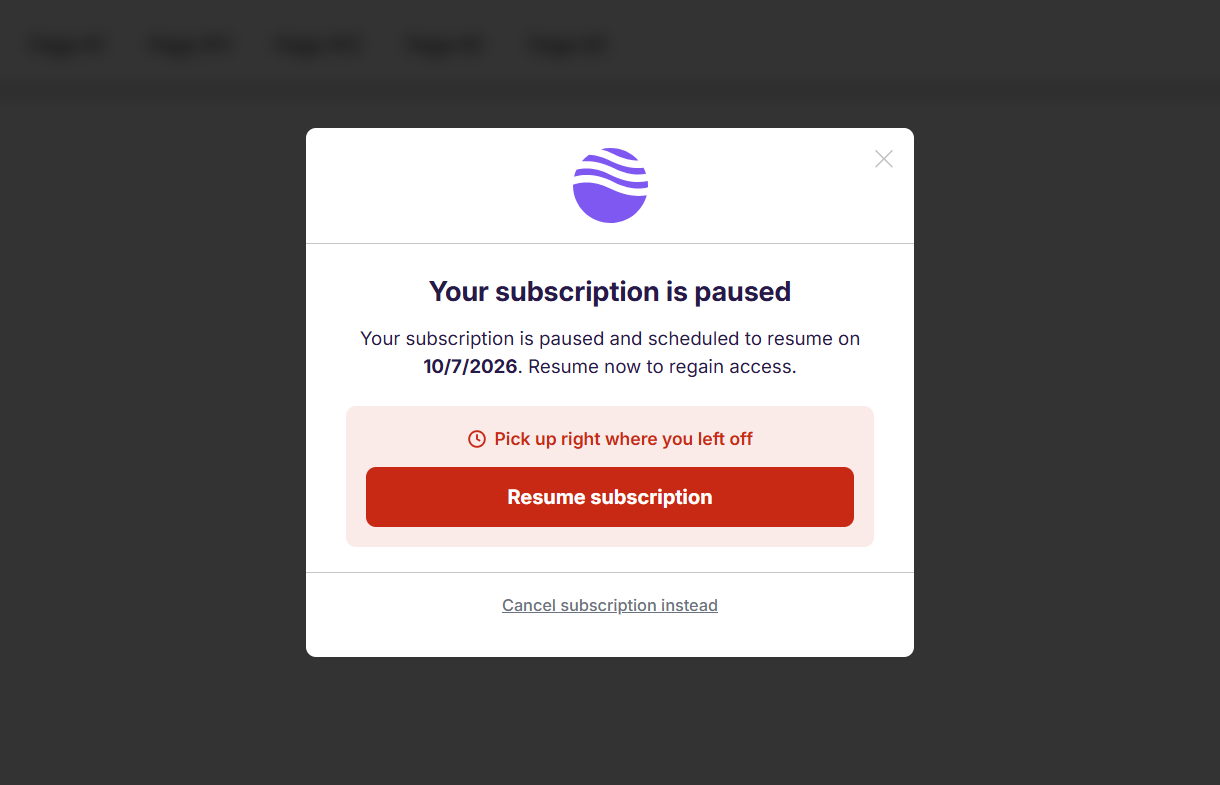
- Paused Subscription (Pause Wall): The user has paused their subscription. In this case, we prompt them to resume their subscription to restore access.
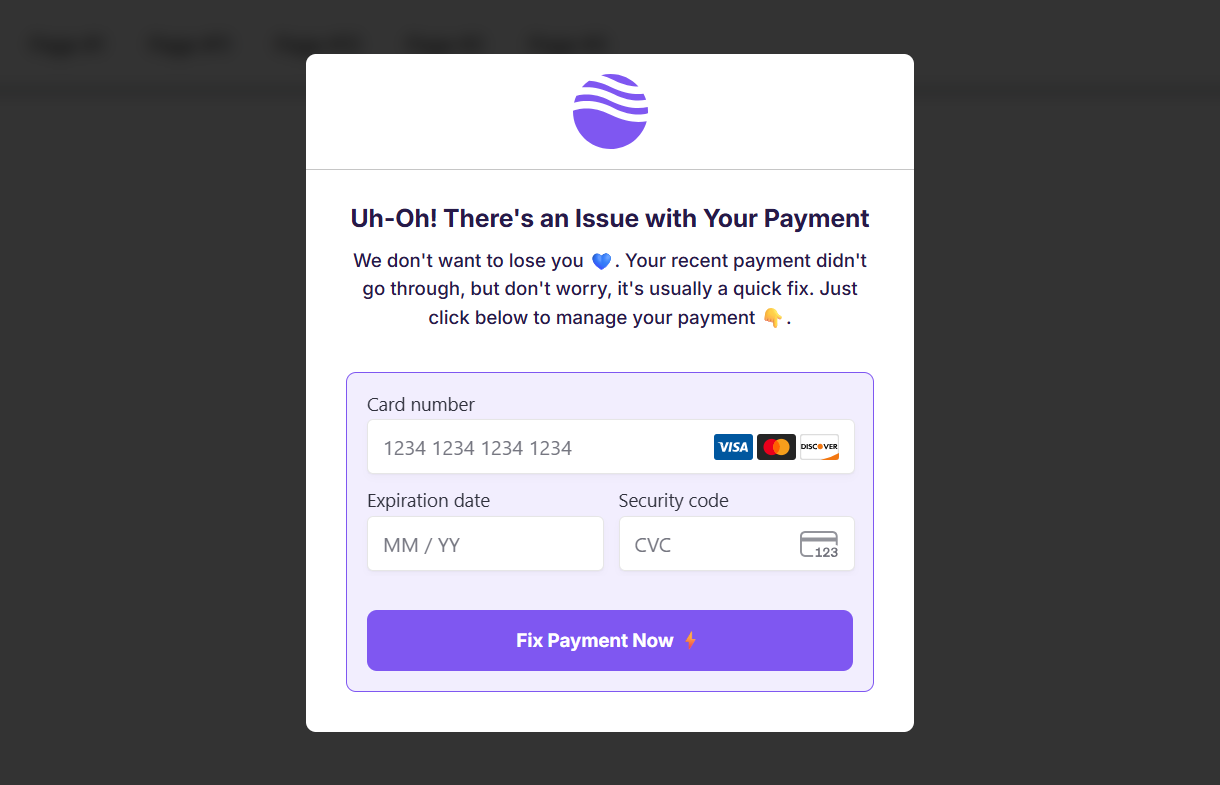
- Failed Payment (Failed Payment Wall): The subscription is restricted due to a payment failure. In this case, we prompt the user to update their payment method.
In both cases, the system makes sure the user is guided through the correct recovery flow, making it easy to keep their subscription active and restore access.
Pause Wall
The Pause Wall controls access when a customer has paused their subscription. Depending on your configuration, you can show a dismissible wall or fully block access until the subscription is resumed.
Failed Payment Wall
The Failed Payment Wall controls access when a subscription is active but a payment attempt has failed. It prompts the user to update their payment method in order to restore access.
Installation
Step 1: Place the embed code and launch snippet
Copy the code below. Paste it before the closing </body> tag on every page you want the subscription walls to appear on. It loads Churn Solution and checks the subscription whenever the page opens, showing the Pause Wall or the Failed Payment Wall when one applies.

<script>
    !function(){
        if (!window.churnSolution || !window.churnSolution.ready) {
            window.churnSolution = { ready: true };
            const s = document.createElement('script');
            s.src = 'https://app.churnsolution.com/sdk/index.min.js';
            s.async = true;
            const e = document.getElementsByTagName('script')[0];
            e.parentNode.insertBefore(s, e);
        }
    }();

    function runWallScript() {
        window.churnSolution?.checkWall({
            subscriptionId, // your subscription ID from your payment provider
            appId: 'APP_ID', // your App ID
            options: {
                // Gating (applies to both wall types)
                softWall: false, // false = hard (blocking, non-dismissable)
                gracePeriodDays: 7, // failed-payment only: soft until (invoice.created + days), then hard
                shouldShowWall: (session) => {
                    // session: { type, invoice, subscription, customer, resumes_at }
                    // type: FAILED_PAYMENT | PAUSE
                    return true; // true | false | 'soft' | 'hard'
                },
            },
        });
    }

    function onChurnSolutionLoad(callback, timeout = 10000, interval = 100) {
        const startTime = Date.now();
        const check = () => {
            if (typeof window.churnSolution?.checkWall === 'function') {
                callback();
            } else if (Date.now() - startTime < timeout) {
                setTimeout(check, interval);
            } else {
                console.warn("Churn Solution script did not load in time.");
            }
        };
        check();
    }

    onChurnSolutionLoad(() => runWallScript());
</script>
The options object controls how each wall behaves — see Configuration Options for every setting and callback available.
Step 2: Generate Security TokenOptional
Use the code below to generate a hash on your server, so that every request sent to Churn Solution is secure. Send the generated hash to your front end and pass it as authKey in the launch call. Below are some examples of how this hash can be generated in different backend languages and frameworks.
Update: Launch Churn Solution
Once your endpoint returns an auth key, pass it to the launch call you added in step 1:
Before
window.churnSolution?.checkWall({
    subscriptionId,
    appId: 'APP_ID',
    options: { /* ... */ },
});
After
window.churnSolution?.checkWall({
    authKey, // hash generated by your server
    subscriptionId,
    appId: 'APP_ID',
    options: { /* ... */ },
});
Configuration Options
Access Modes
Soft Wall
Allows users to close the wall and continue using the application.
softWall: trueHard Wall
Fully blocks access until the user takes action (resume or update payment).
softWall: falseGrace Period (Failed Payments Only)
Allows continued access for a defined number of days before enforcing the wall.
gracePeriodDays: 7Dynamic Control with shouldShowWall
While softWall sets a single mode for
every user, the shouldShowWall callback
lets you decide — per user, at runtime — whether the wall should appear
at all and, if so, whether it should be soft or hard. It runs every time
checkWall is called and receives a
session object describing the current
subscription state.
The callback receives a single
session argument:
| Property | Description |
|---|---|
type |
The wall type for this session:
FAILED_PAYMENT or
PAUSE.
|
invoice |
The related invoice (for failed payments), including amount, currency, and status. |
subscription |
The subscription object, including its plan, status, and metadata. |
customer |
The customer object, including email and any custom metadata. |
resumes_at |
For paused subscriptions, the timestamp at which the subscription is scheduled to resume. |
The value you return controls what happens next:
| Return value | Result |
|---|---|
true |
Show the wall using the mode from
softWall /
gracePeriodDays.
|
false |
Do not show the wall; the user keeps full access. |
'soft' |
Force a dismissible soft wall, overriding other settings. |
'hard' |
Force a blocking hard wall, overriding other settings. |
This lets you tailor the recovery experience to your business rules. For example, you can hard-block high-value invoices while giving smaller balances a dismissible wall, keep trusted or high-tier customers on a soft wall, or skip the wall entirely for a segment identified through subscription or customer metadata.
shouldShowWall: (session) => {
    const { type, invoice, subscription, customer, resumes_at } = session;

    // Never wall your internal or VIP accounts
    if (customer?.metadata?.plan_tier === 'vip') return false;

    if (type === 'FAILED_PAYMENT') {
        // Hard-block large unpaid invoices, keep small ones dismissible
        return invoice?.amount_due >= 10000 ? 'hard' : 'soft';
    }

    if (type === 'PAUSE') {
        // Only wall paused subscriptions that are still active plans
        return subscription?.metadata?.enforce_pause === 'true';
    }

    return true; // fall back to the softWall / gracePeriodDays settings
},
shouldShowWall callback runs on
the client, so treat it as a presentation rule. Access enforcement is
always re-validated on the Churn Solution side.
System Events
System events are triggered globally for both the Pause Wall and the Failed Payment Wall.
Lifecycle Events
| Event | Trigger | Description |
|---|---|---|
onWallActivated |
Wall is displayed | Fired when either the Pause or Failed Payment wall becomes visible to the user |
onWallClose |
Wall is dismissed | Fired when the user closes or exits the wall |
onError |
Runtime error occurs | Fired when an error occurs within the wall system |
Subscription Actions
Subscription actions are triggered based on the type of recovery flow the user is in.
Failed Payment Flow
Triggered when the user updates their payment method successfully.
| Event | Signature | Description |
|---|---|---|
onUpdatePaymentInformation
|
(customer) => {} |
Fired after the user successfully updates their payment details |
Pause Flow
Triggered when the user interacts with a paused subscription.
| Event | Signature | Description |
|---|---|---|
onResumeSubscription |
(customer) => {} |
Fired when the user resumes their subscription |
onCancelSubscription |
(customer) => {} |
Fired when the user cancels a paused subscription |
Full Configuration Example
The following example brings every option together in a single
checkWall call — the gating settings,
the shouldShowWall decision callback,
and all of the lifecycle and subscription-action callbacks for both wall
types.
window.churnSolution?.checkWall({
    authKey, // hash generated by your server
    subscriptionId, // your subscription ID from your payment provider
    appId: 'APP_ID', // your App ID
    options: {
        // Gating (applies to both wall types)
        softWall: false, // false = hard (blocking, non-dismissable)
        gracePeriodDays: 0, // failed-payment only: soft until (invoice.created + days), then hard
        shouldShowWall: (session) => {
            // session: { type, invoice, subscription, customer, resumes_at }
            // type: FAILED_PAYMENT | PAUSE
            return true; // true | false | 'soft' | 'hard'
        },

        // Generic callbacks
        onWallActivated: ({ type }) => {
            console.log('wall activated, type:', type);
        },
        onWallClose: ({ type }) => {
            console.log('wall closed (soft), type:', type);
        },
        onError: (error, type) => {
            // type: WALL_INITIALIZATION_ERROR | FAILED_PAYMENT_WALL_UPDATE_CARD_ERROR
            //     | PAUSE_WALL_RESUME_ERROR | PAUSE_WALL_CANCEL_ERROR
            console.log('wall error', type, error);
        },

        // Failed-payment wall
        onUpdatePaymentInformation: (customer) => {
            console.log('payment updated, customer:', customer);
        },

        // Pause wall
        onResumeSubscription: (customer) => {
            console.log('subscription resumed, customer:', customer);
        },
        onCancelSubscription: (customer) => {
            console.log('subscription cancelled, customer:', customer);
        },
    },
});
Paid Memberships Pro
If you are using Paid Memberships Pro, no code changes are required.
Simply contact the Churn Solution team and we will enable the Pause Wall and the Failed Payment Wall for your site and configure it on your behalf. The integration is fully managed and does not require any additional implementation.