
Zapier
Zapier is an automation platform that connects thousands of apps such as Google Sheets, Slack, Todoist, Trello, HubSpot and Airtable without writing code. With Churn Solution, you can trigger automations whenever a cancellation flow session is completed and use the session data in any Zapier workflow (a "Zap").
On this page
How to connect Zapier and Churn Solution
- Connect from Churn Solution
On the Integrations page, click Connect next to Zapier.
- Accept the invite
On the Churn Solution page in Zapier, click Accept Invite & Build a Zap, then log in or create a Zapier account.
The Churn Solution invite page on Zapier. - Create a Zap
Click Create on the Zaps page, search for Churn Solution as the trigger app and choose the event Cancellation Flow Completed.
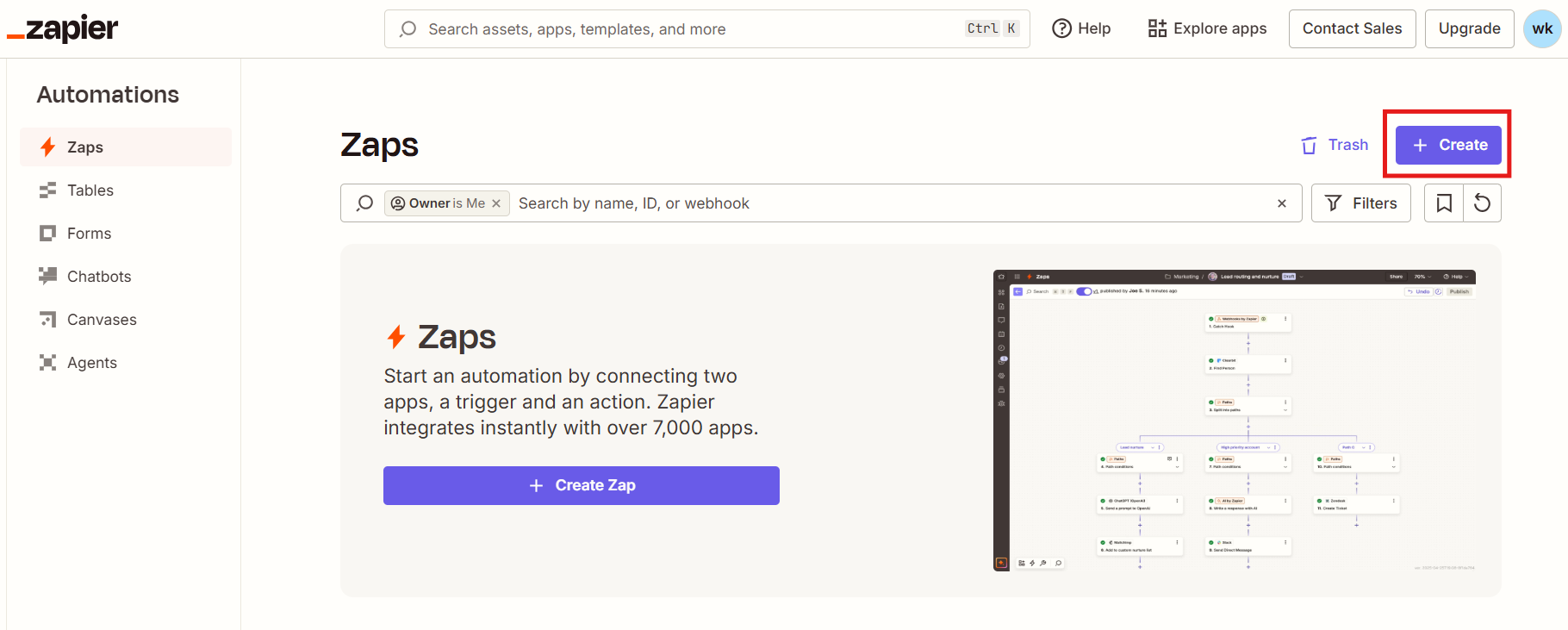
The Zaps page with the Create button. 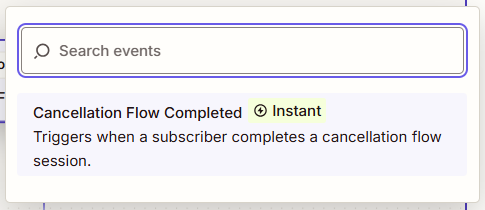
Selecting the Cancellation Flow Completed trigger event. - Authorize
Sign in and allow Zapier to access your Churn Solution account.
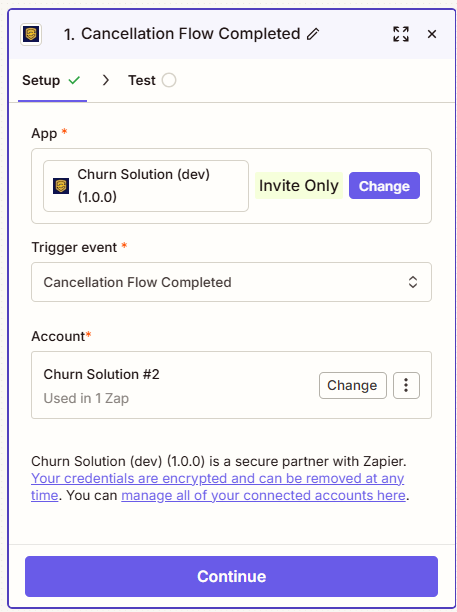
The trigger Setup tab with the app, event and connected account. - Add actions
Slack message, Google Sheets row, CRM update, and so on.
- Publish and test
Click Publish. Open a cancellation session in your app, then click Test trigger in the Zap's Test tab.
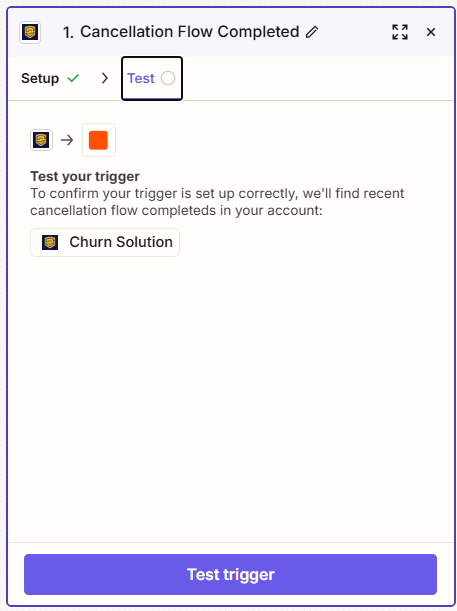
The Test tab of the Cancellation Flow Completed trigger.
Trigger: Cancellation Flow Completed
Every time a customer finishes a session in any of your cancellation flows, Churn Solution sends the session data to Zapier instantly.
Session data sent to Zapier
| Group | Fields |
|---|---|
| Session | Session ID, Session Status, Is Saved, Session Created Date |
| Customer | Customer ID, Customer Name, Customer Email, Customer Created Date |
| Subscription | Subscription ID, Subscription Status, Subscription Start Date, Current Period Start, Current Period End, Trial Start, Trial End |
| Plan | Plan ID, Billing Interval and Interval Count, Currency, Price (Unit Amount), Quantity, Plan Summary |
| Cancellation Flow | Flow ID, Flow Name, Flow Created Date, Flow Updated Date |
| Session Steps | Step Type, Survey Answer, Follow-up Question and Answer, Form Answer, Offer Presented, Offer Details, Offer Accepted, Offer Summary |
Example uses
- Alert the team in Slack.
- Log cancellation reasons in a Google Sheet.
- Create follow-up tasks in Trello or Asana.
- Update contacts or deals in your CRM.
- Send follow-up emails to customers who cancelled.
Example: send a Slack notification when a session is completed
- Trigger
Churn Solution → Cancellation Flow Completed.
- Action
Slack → Send Channel Message. Connect your Slack account and pick the channel.
- Message
Build it from the session fields:
Cancellation flow completed
Customer: {Customer Name} ({Customer Email})
Plan: {Plan Summary}
Reason: {Survey Answer}
Saved: {Is Saved}
Flow: {Flow Name}