Translation
Add as many languages as you need to a cancellation flow. Churn Solution detects the customer’s language, shows the matching translation, and falls back to your default.
How it works
- Add the languages you support
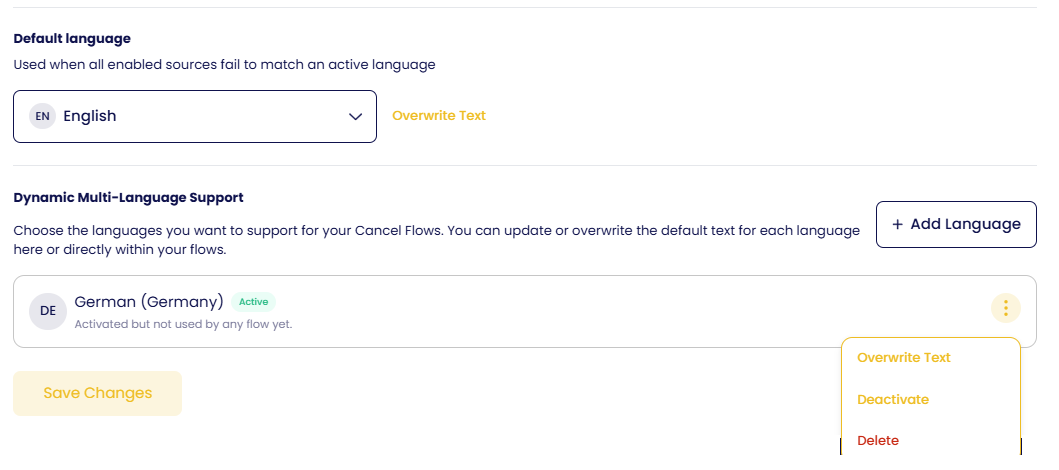
Under Settings → Multilingual & Text Override → Dynamic Multi-Language Support, click Add Language. Each language can be active or deactivated, and can be deleted.
- Choose the default language
Used when none of the detection sources matches an active language. English by default.
- Customise the default text per language
Click Overwrite Text next to a language to edit every system string (buttons, labels, messages) in that language. Churn Solution pre-fills a translation; change any line, or reset it to the default.
- Translate your flows
Inside each flow, the texts you wrote (survey, offers, confirmation) are translated automatically into every active language. Review and edit them in the flow, then publish the changes.
- Enable it on the flow
Translations are only shown once the flow is published with the language enabled.
How the customer’s language is chosen
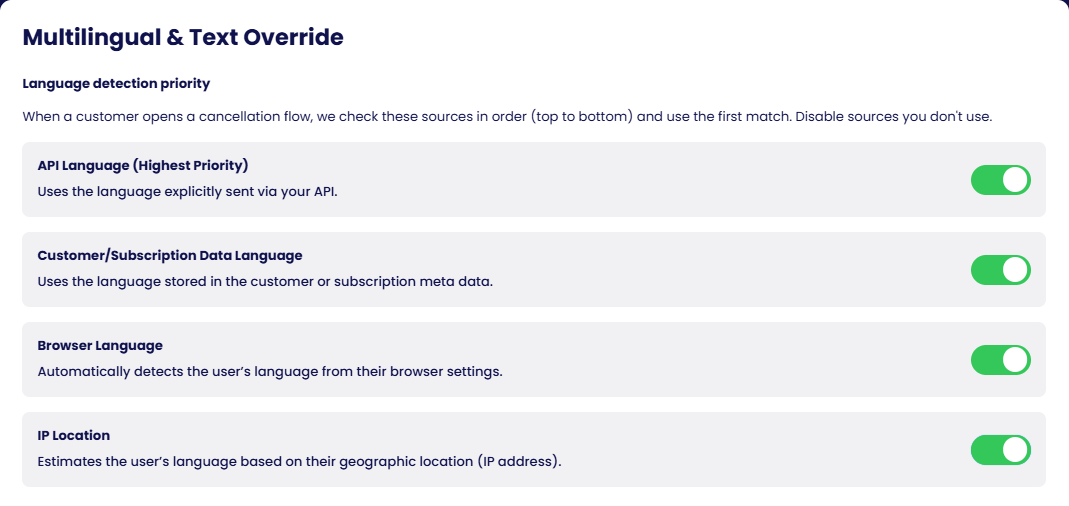
When a customer opens a flow, the sources below are checked in order and the first match with an active language is used. Turn off any source you do not want.
| Priority | Source | What it uses |
|---|---|---|
| 1 | API language | The language option you pass at launch |
| 2 | Customer / subscription data language | A language stored in the customer or subscription metadata in your gateway |
| 3 | Browser language | The customer's browser settings |
| 4 | IP location | An estimate from the customer's geographic location |
| — | Default language | When nothing above matches an active language |
Text overwrites
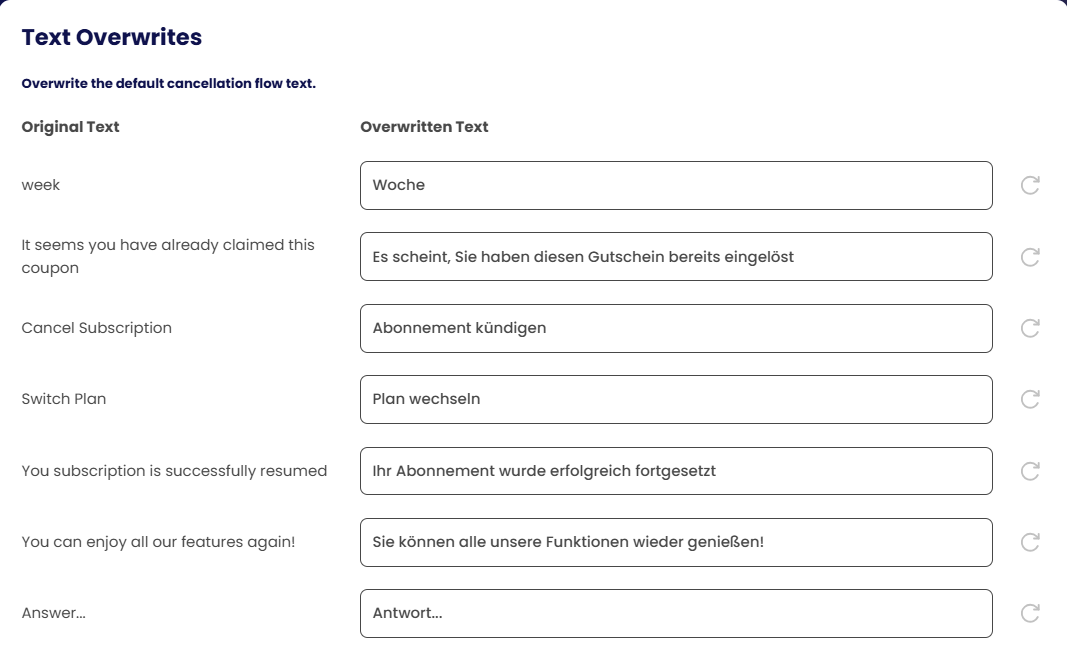
The Text Overwrites screen for a language lists every default string with its translation beside it. Edit any line; the reset icon restores the suggested translation. The same strings can also be overridden per session from code with customTexts (see the Texts & languages reference on your gateway page).