Campaign builder
Build the sequence: timing, channels, content and offers for each step, then preview and publish.
On this page
The sequence
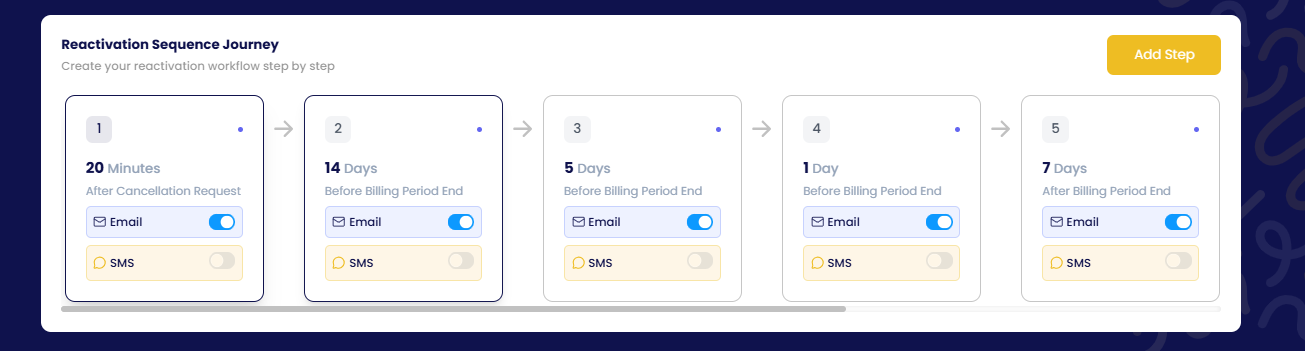
A campaign is a sequence of steps shown left to right. Click Add step to append one, remove the ones you do not need, and switch any step off without deleting it. Each step has its own timing, channels, content and offer. A typical sequence:
Timing
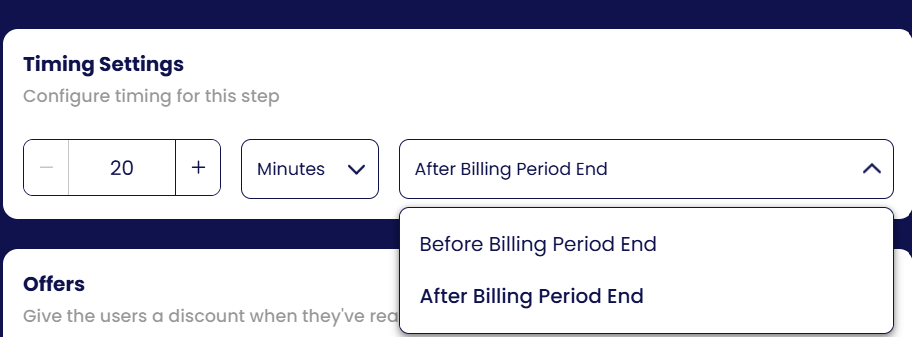
Each step is scheduled in minutes, hours or days relative to one of three moments:
- After cancellation request: for example 20 minutes after the customer cancelled, while the decision is fresh.
- Before billing period end: for example 14, 5 and 1 day before access ends, while they can still resume without losing anything.
- After billing period end: for example 7 days after the subscription actually ended, as a final win-back.
Channels
Every step has an Email toggle and an SMS toggle. Turn either on or off per step, so a sequence can be email-only, SMS-only, or mix them (for example SMS only on the last day before the period ends).
To enable SMS, contact us: we set up the number your messages are sent from, based on your customers' location. Once it is in place you can switch SMS on for any step.
Contact us to enable SMSOffer and reactivation page
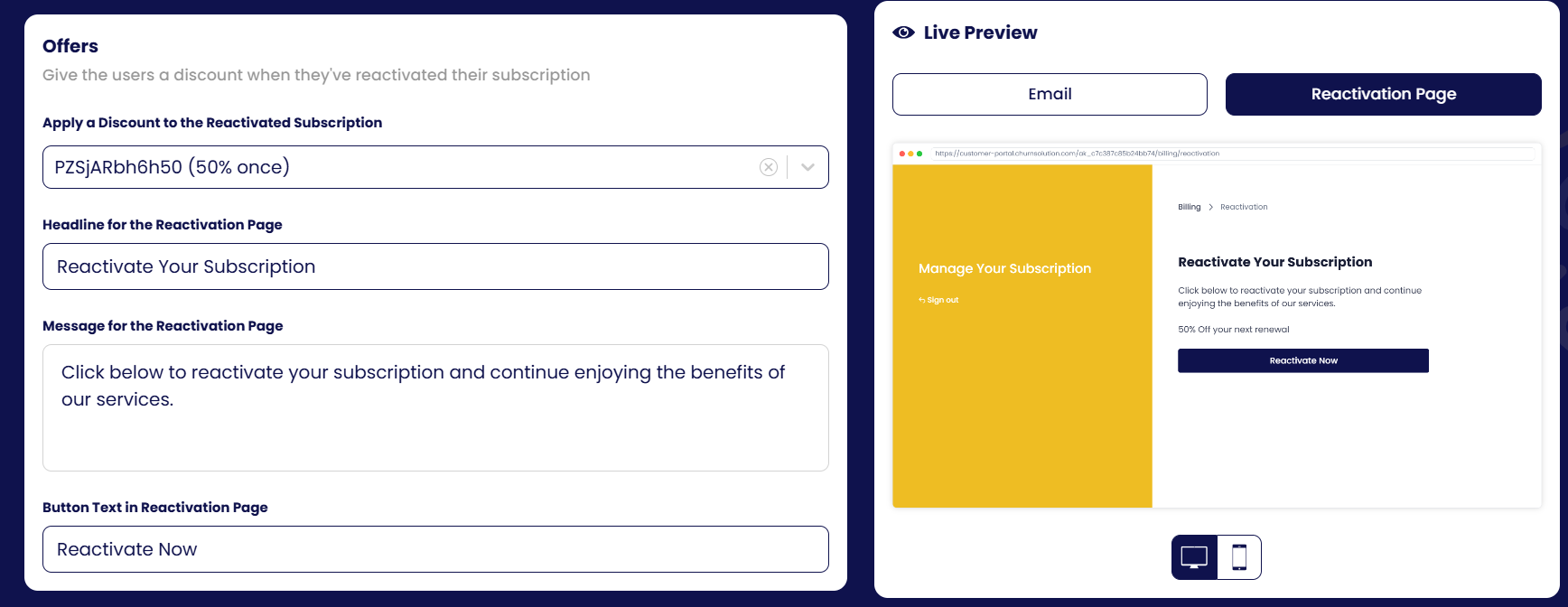
Optionally apply a discount from your gateway to the reactivated subscription, and write the headline, message and button text of the reactivation page the customer lands on. The live preview on the right shows the email and the reactivation page on desktop and mobile.
Email content
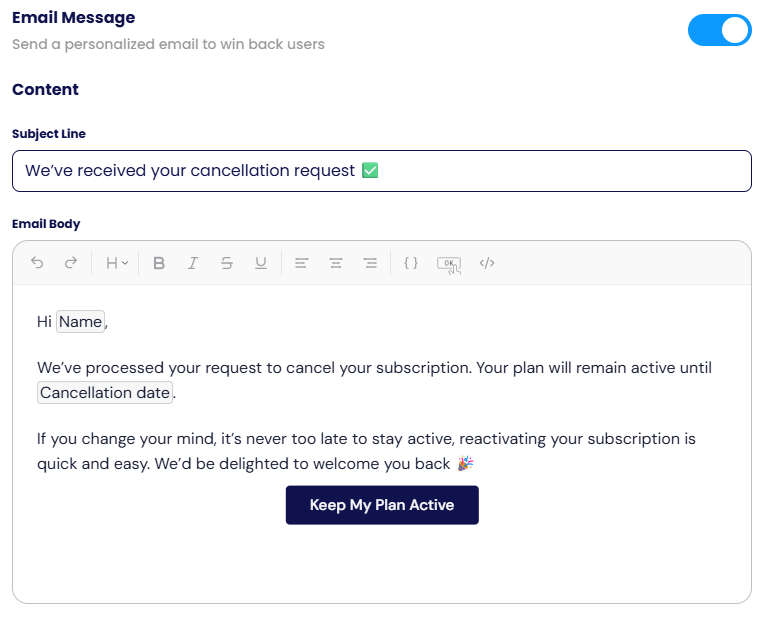
Write the subject line and the message body in the rich-text editor: headings, bold, lists, alignment, or the HTML view if you prefer to paste your own template. Insert variables such as the customer's name, plan, cancellation date and offer with the { } button, and add the one-click Keep My Plan Active / resume button — no password and no card re-entry when a saved payment method exists.
- Send test email: enter an address and send the message to yourself to see exactly how it looks before publishing.
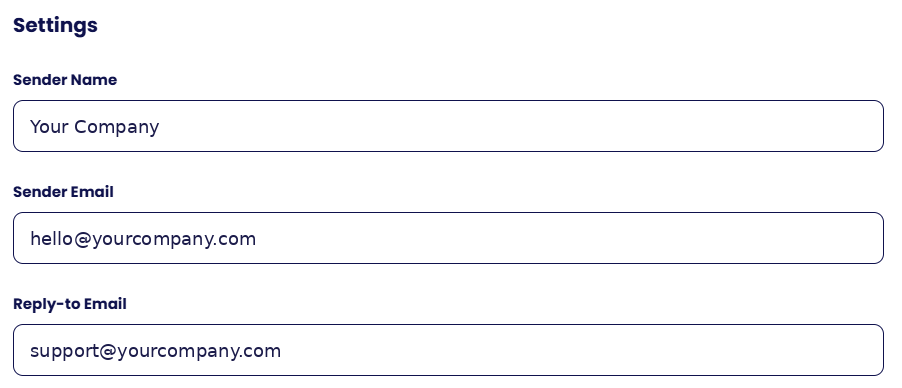
- Sender settings: manage the sender name, sender email and reply-to address used for the campaign; they must be on the domain set up for your account.

SMS content
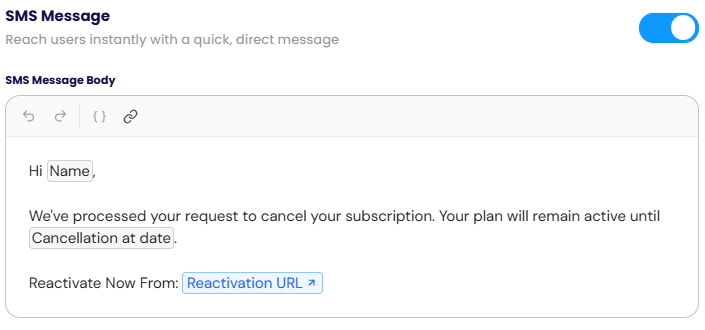
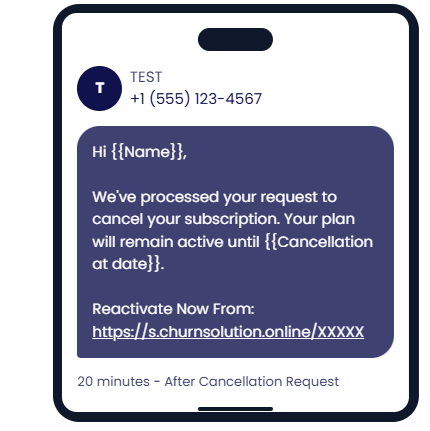
Write the SMS message body in the editor: insert variables such as the customer's name and the cancellation date, and add the Reactivation URL link — a short link that takes the customer straight to the reactivation page. The phone preview on the right shows exactly how the message arrives, with the step's timing underneath.
Preview, save and publish
Changes are saved automatically (Saved). Click Preview Campaign to walk through every step of the campaign as a customer would, then publish.
