Exit survey
Learn why each customer is leaving, and use the answer to pick the right offer.
How it works
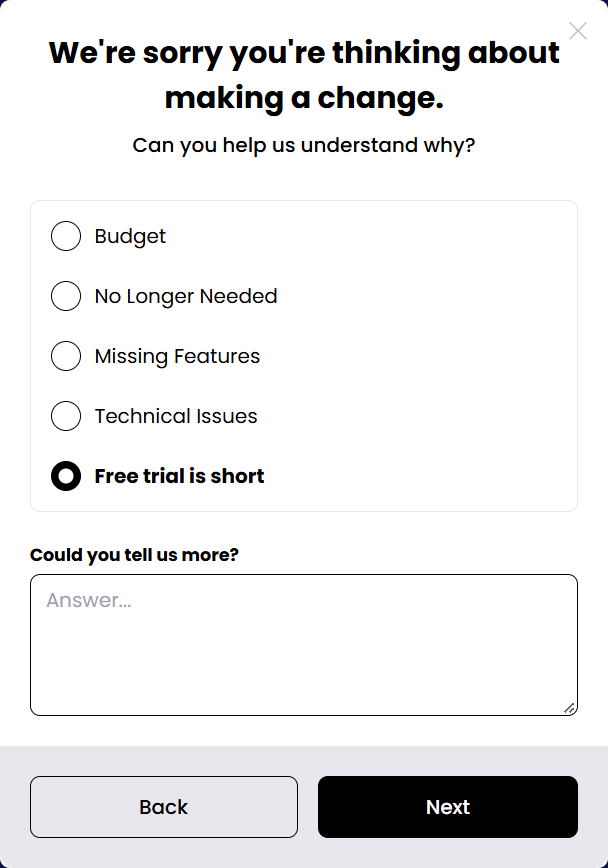
- The customer picks a reason
They see a list of cancellation reasons and choose one. The default list is Budget, No longer needed, Missing features and Technical issues. You can add your own reasons, rename them, or remove them.
- Reasons can be shuffled
Turn on Randomise order and each customer sees the reasons in a different order, so the first option is not picked more often just because it is first.
- A follow-up question appears
As soon as a reason is selected, a question written for that reason appears under the list, for example "Which feature are you missing?". You decide whether answering is required, and the minimum number of characters.
- The reason chooses the offer
Each reason is linked to one offer in the next step. A customer who picks Budget sees a discount; one who picks Free trial is short sees a trial extension.
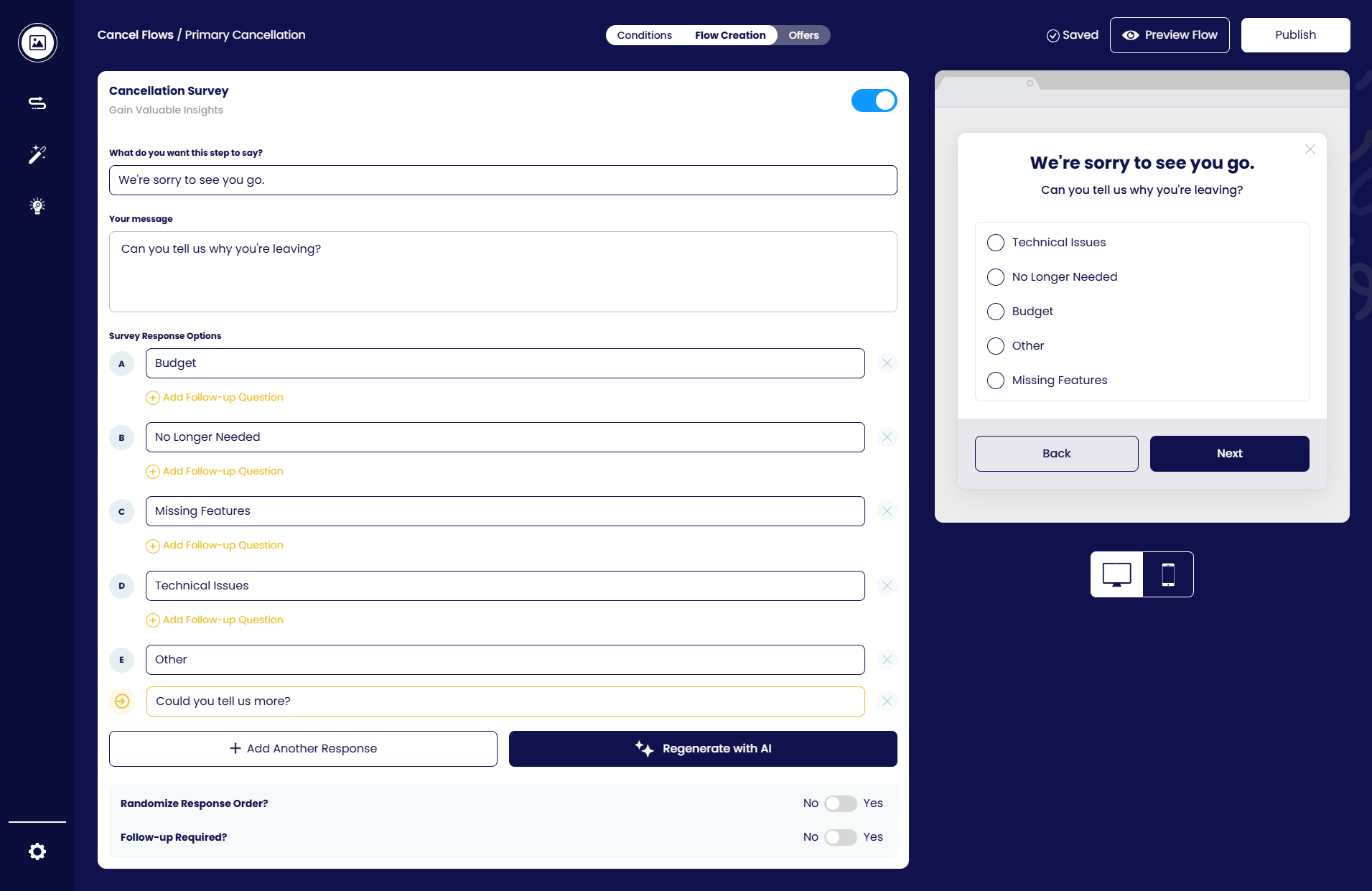
Editing the survey in the flow builder
In the Cancellation Survey step of the flow builder you control everything the customer sees: the headline and message, the list of response options — add as many as you prefer with Add Another Response, rename or remove any of them — and a follow-up question for each reason (click Add Follow-up Question under a reason). Regenerate with AI rewrites the copy for you. At the bottom you can randomise the response order, make the follow-up required and set a minimum number of characters. The live preview on the right shows the result on desktop or mobile.