Flow builder
Create a flow from a template, from scratch or with AI, then name it, choose its audience, assemble the steps, pick the offers and publish.
On this page
Create a new cancel flow
From Cancellation Flows click Create and choose how to start:
- New cancel flow — start from scratch.
- Use a template — choose from the library of ready-made flows built on common best practice.
- Build with AI (beta) — describe your business and let Smart Design Flow draft the survey, offers and copy for you.
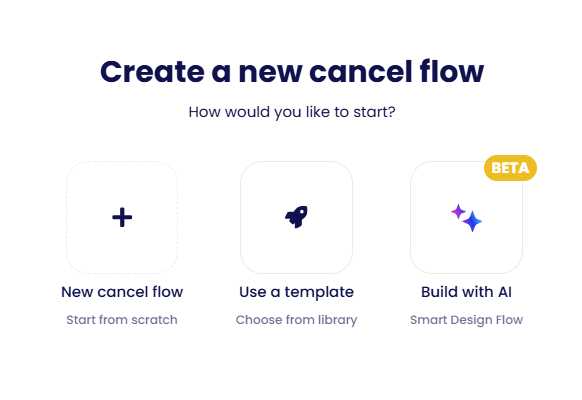
Whichever you pick, the builder walks you through four stages — Flow Name → Conditions → Flow Creation → Offers — shown in the bar at the top.
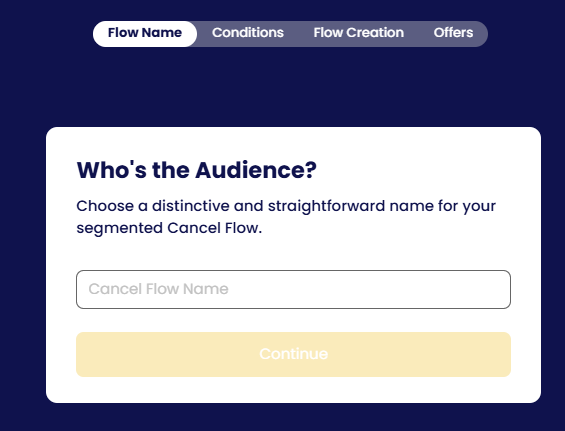
Flow name
Give the flow a distinctive, straightforward name that says who it is for — each flow targets one audience, so name it after that segment (for example “Annual plans” or “Trial users”).
Conditions
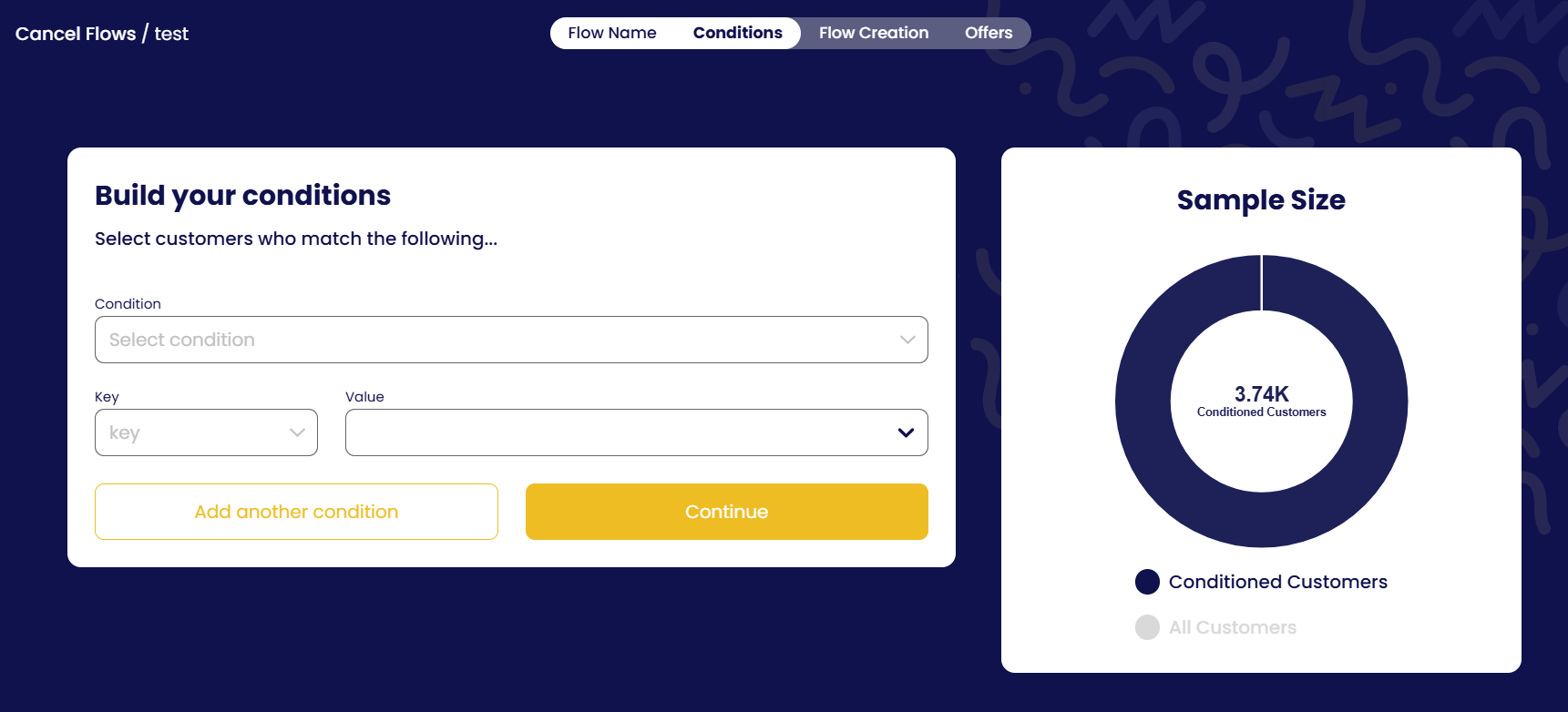
Define which customers this flow applies to. Add one or more conditions on subscription attributes (plan, status, price, billing interval, subscription age, discounts…) or on your own custom attributes, and combine them with and / or. The Sample Size chart updates live so you can see how many customers match before you continue. See Customer segmentation.
Flow creation — the steps
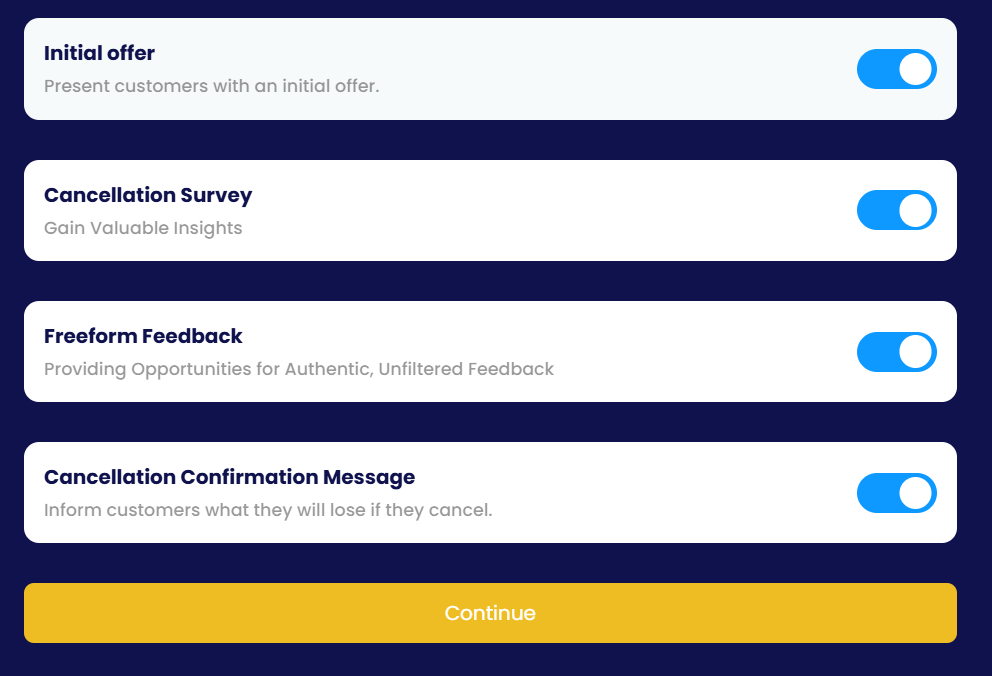
Assemble the steps a cancelling customer walks through. You can enable or disable each step and reorder them; edit the copy of each one and the live preview updates as you go.
Offers
Map each survey reason to the save offer it should trigger — pause, coupon, trial extension, switch plan, switch plan with coupon, contact, or send to a page — and set the redemption limits. Offers your gateway cannot perform are hidden from the picker. See Dynamic offers.
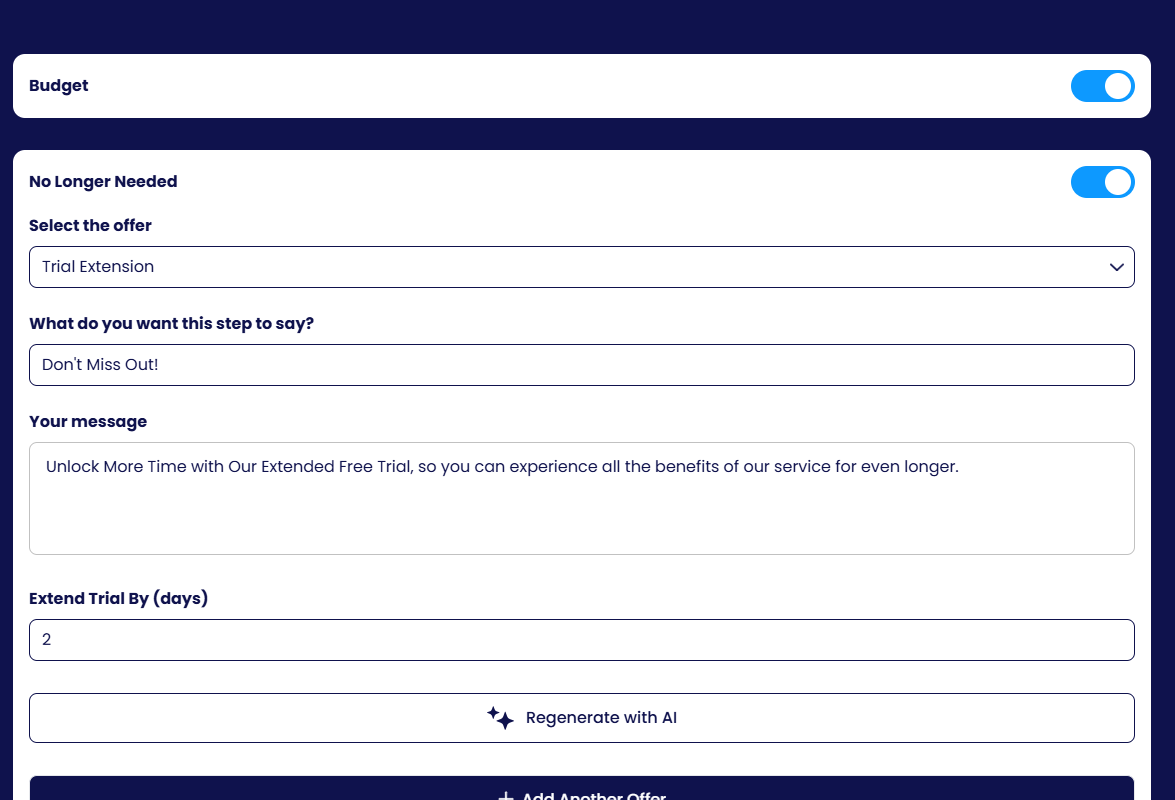
Each survey reason has its own card: turn it on, select the offer, write the headline and message (or Regenerate with AI), set the offer value — for example the number of days for a trial extension — and add another offer for the same reason if you want a fallback.
Preview, save and publish
Changes are saved automatically (Saved). Click Preview Flow to walk the flow exactly as a customer would, without touching a real subscription. When you are happy, click Publish — customers in this audience see the published version the next time they click Cancel.
- Flows are drafts until published; customers only ever see the published version.
- Editing a published flow creates a new draft; publish again to replace it.
- Unpublish a flow at any time; customers in that audience then see the default flow.
Primary vs conditioned flows
The first flow your company creates is the primary flow. It applies to all customers by default. Every flow you create after it is a conditioned flow: it only applies to the segment defined by its conditions.
- When a customer clicks Cancel, Churn Solution checks the conditioned flows first. If the customer matches none of them, they see the primary flow.
- If a customer matches two or more conditioned flows, they are assigned to the first matching flow from the top of the list. Drag flows to reorder them and change that priority.