Custom branding
Add your brand kit on the Design page and every flow, wall and portal page follows it.
On this page
Images
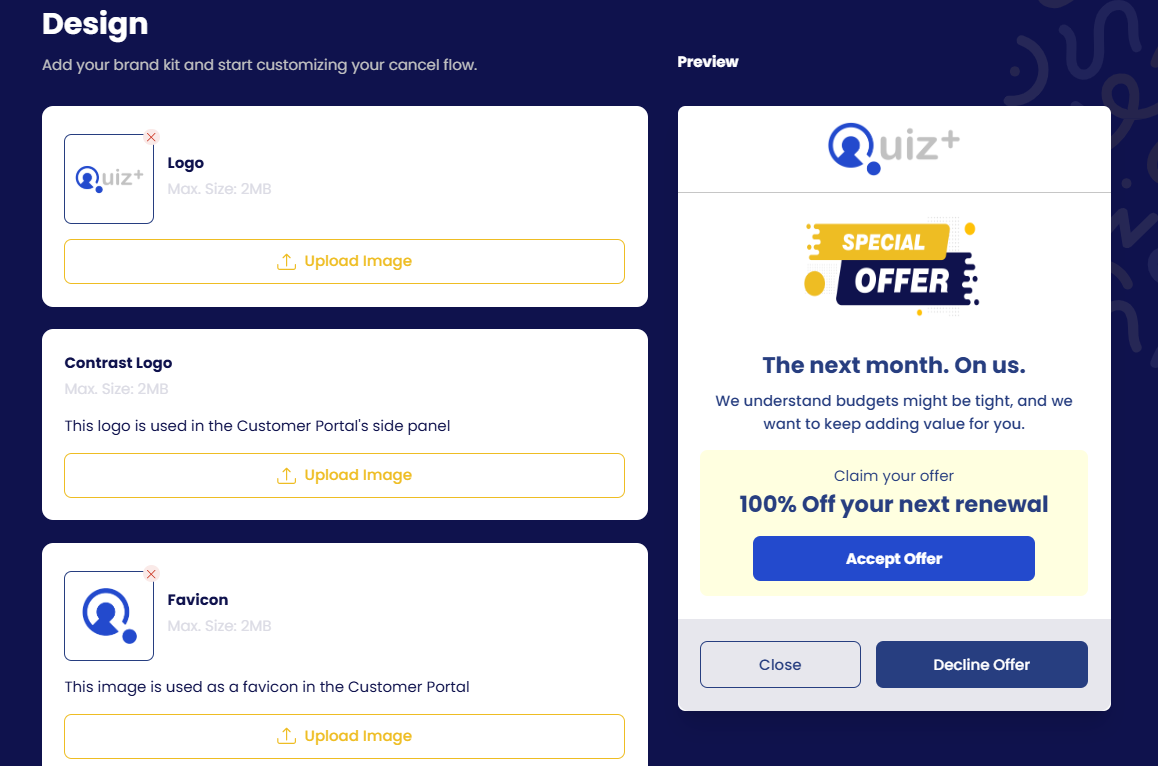
| Setting | Where it is used |
|---|---|
| Logo | Top of every step of the cancellation flow. Max 3 MB. |
| Contrast logo | A version for dark backgrounds, used in the Customer Portal's side panel |
| Favicon | Browser-tab icon for the Customer Portal |
| Discount offer image | Optional image shown on the discount offer card (toggle on/off, then upload). Default is the "Special offer" badge. |
Colours
- Brand primary colour: headings, highlights and the flow's accent.
- Button colour: the main action button on each step (Next, Accept offer, Pause subscription…).
- Accept button text colour: text on that button, so it stays readable on your button colour.
Font
- Match site font: the flow inherits whatever font your page uses at runtime. The preview in the dashboard cannot show it; check on your site.
- Churn Solution font, or Arial, Tahoma, Times New Roman, Georgia.
- Any other font: pass
fontandfontUrlat launch; see the Launch options reference on your gateway page.
Confetti & animations
A confetti animation plays when a customer claims an offer. Keep the default or upload your own animation as a Lottie JSON file.
Texts
Every string in the flow is editable in the Flow builder. For other languages see Translation.