Dunning emails
Branded email sequences that bring customers back to update their card — one campaign per segment of failed invoices, each with its own timing, offers and copy.
On this page
Requirements
Dunning emails work with Stripe, WooCommerce and Paid Memberships Pro. You need a connected gateway and a domain for emails and the recovery pages: emails are sent from your own domain and the recovery pages are hosted on it, so contact the team with the domain you want to use and we set it up via DNS.
Contact our teamCampaigns and conditions
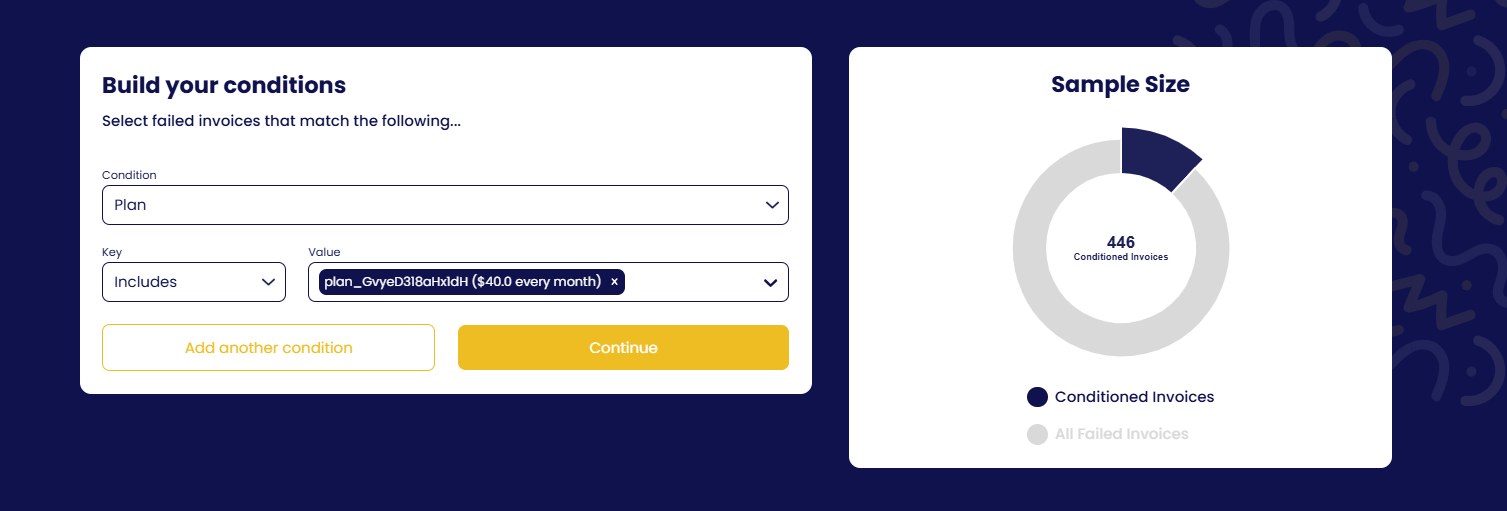
You can create as many recovery campaigns as you need. Each campaign has its own conditions, so different segments of failed invoices get different sequences — for example a longer, more personal sequence for annual plans. Add one condition or several, combine them with and / or, and the Sample Size chart shows how many failed invoices match. You can segment on:
Building the sequence
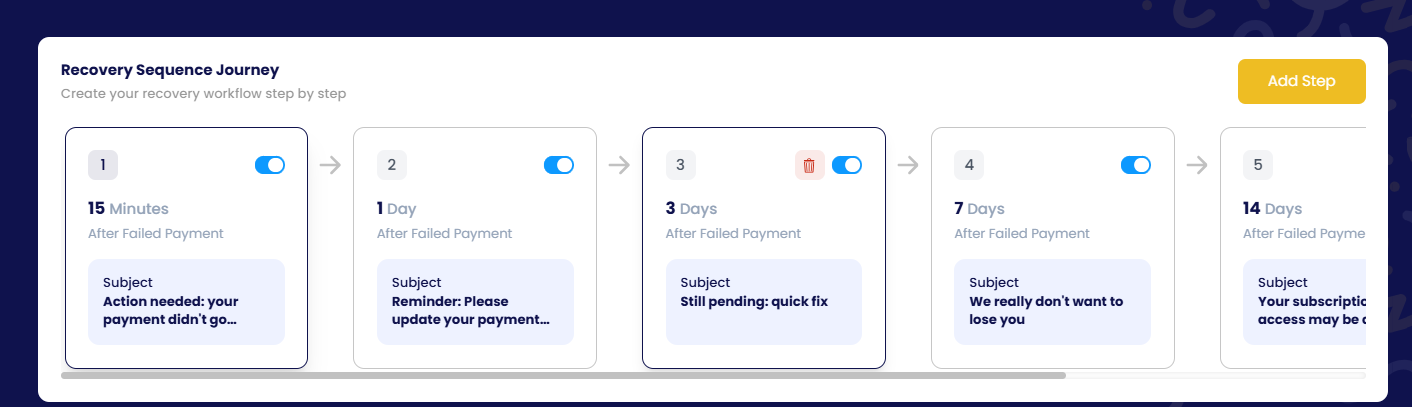
The Recovery Sequence Journey is the list of emails in the campaign. Add steps with Add Step, remove the ones you do not need, and switch any step off without deleting it. Each step is timed after the failed payment — for example 15 minutes, 1 day, 3 days, 7 days, 14 days — and the sequence stops the moment the invoice is paid.
Configuring each email
Timing
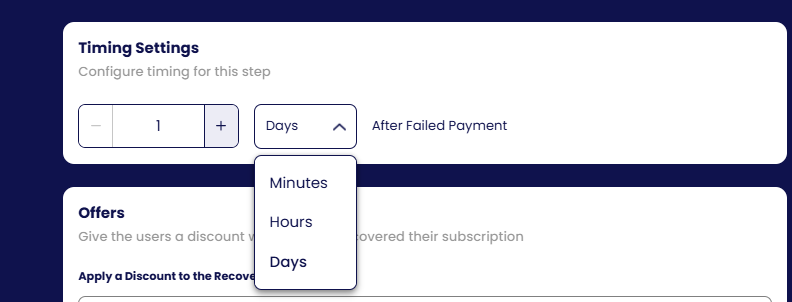
Set when the email goes out, in minutes, hours or days after the failed payment.
Offer and recovery page
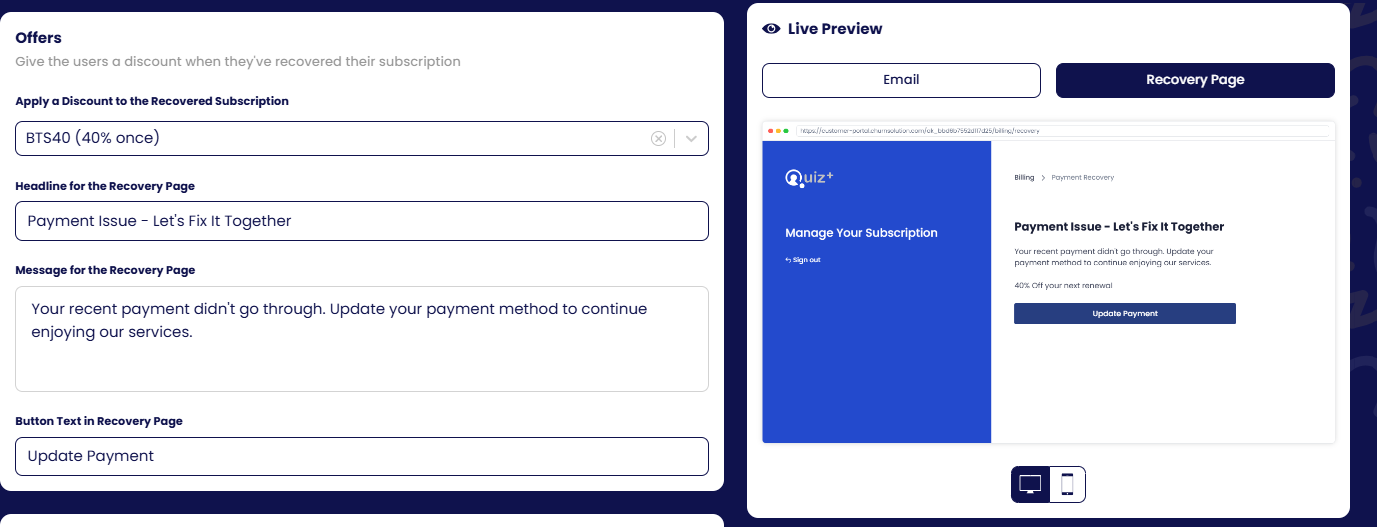
Optionally apply a discount from your gateway to the recovered subscription, and write the headline, message and button text of the recovery page the customer lands on to update their payment method. The live preview on the right shows the email and the recovery page on desktop and mobile.
Email content
Write the subject line and the email body in the editor. Insert variables such as the customer's name, the invoice amount or the plan, format the text, add the Fix Payment Now button, or switch to the code view and use your own custom HTML.
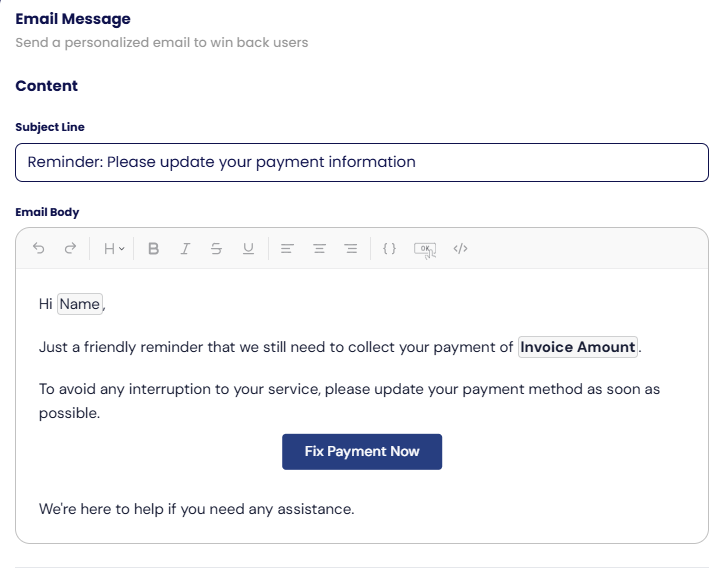
Send test email: enter an address and send the message to yourself to see exactly how it looks before publishing.

Sender settings
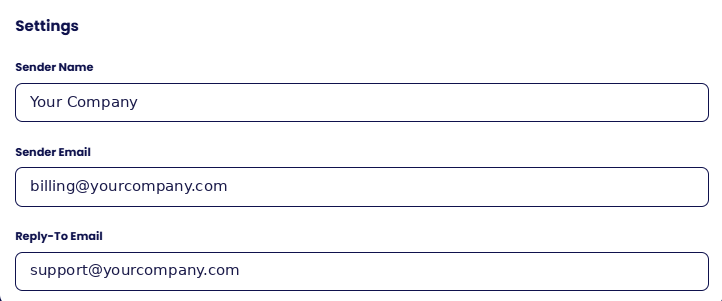
Manage the sender name, sender email and reply-to address used for the campaign. They must be on the domain set up for your account.
Preview and publish
Changes are saved automatically. Click Preview Campaign to walk through every email of the campaign as a customer would, then publish.
Tracking
Payment Recovery Attempts lists every enrolled invoice: customer email, amount, channels (emails, retries, both), the next scheduled action with its email subject and a preview link, and recovery status. Click the email for the customer's full timeline.