Slack
Get a Slack message every time a customer goes through your cancellation flow, so the whole team stays informed without logging in to Churn Solution.
How to connect Slack and Churn Solution
- Open the Integration page
In your account settings, go to the Integration page.
- Click Connect Slack
Set up Churn Solution in Slack and select the channel where session notifications should be posted.
- Test it
Use the test option; Churn Solution posts a Slack message reporting the connection status.

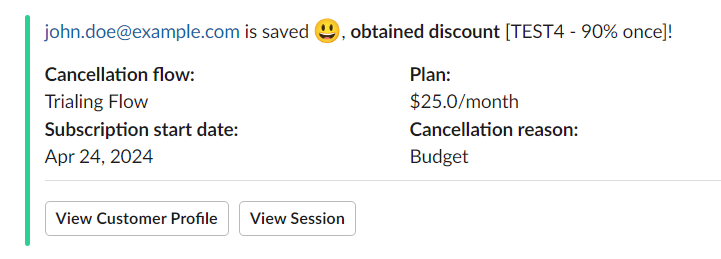
Confirmation message posted to your channel after connecting.
Slack notifications
Whenever a customer completes a cancellation flow, a message with the session details is posted to the channel. Everyone on your team, including people who do not use the Churn Solution dashboard, can follow cancellation activity.
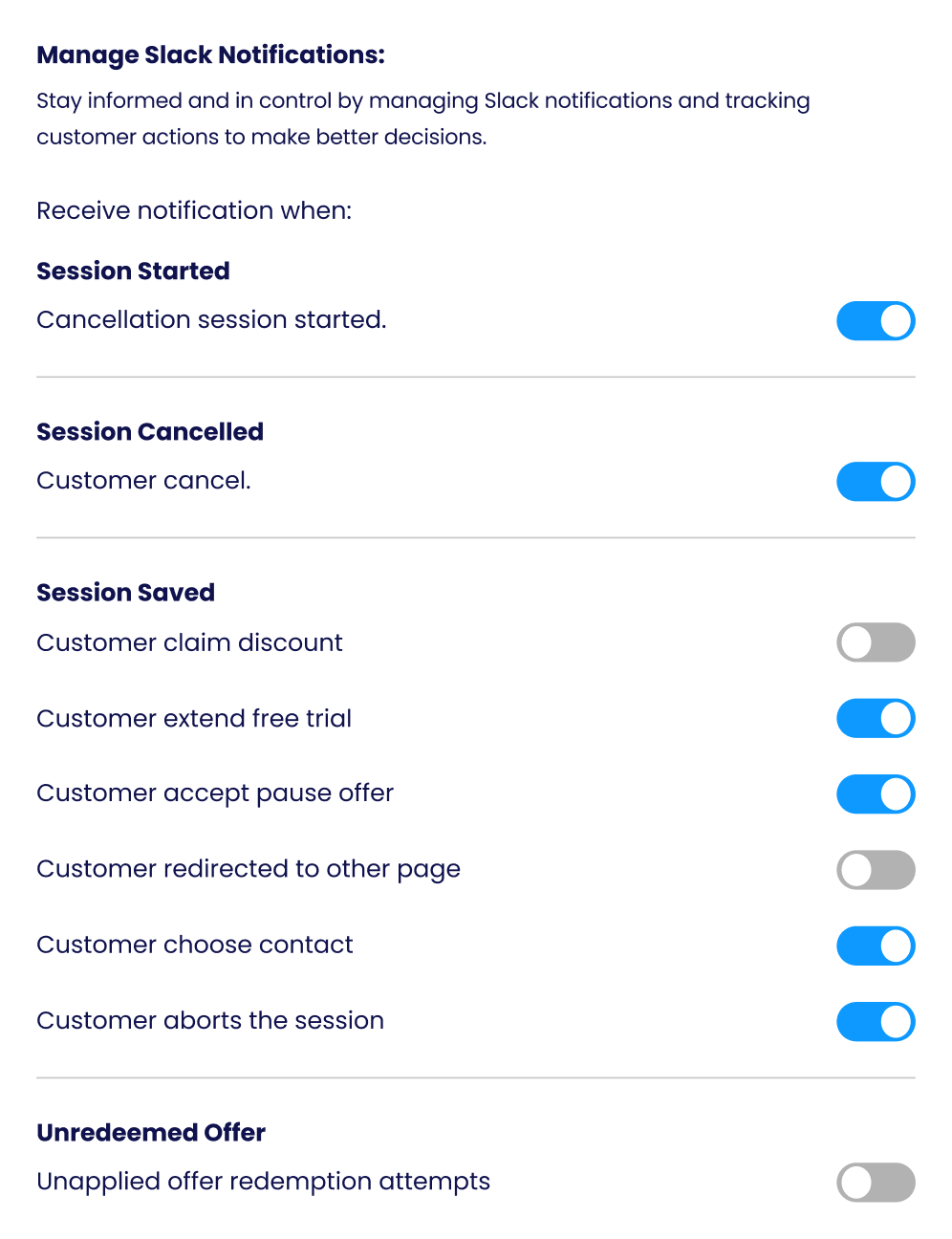
Manage Slack notifications
Choose which events trigger a message:
- Session started
- Cancellations
- Saves, including the action taken: discount claimed, trial extended, subscription paused
- Contact-support interactions
- Session aborted
- Offer redemptions, when you have set limits on offers