
Paid Memberships Pro
Paid Memberships Pro is a complete solution for securing content and creating a seamless membership experience on WordPress.
On this page
- How to connect PMPro and Churn Solution
- Step 1: Install Paid Memberships Pro plugin
- Step 2: Install Churn Solution plugin
- What will Paid Memberships Pro users be shown after installing the Churn Solution plugin?
- Cancellation Flows on PMPro
- Integration steps
- Offers available on PMPro
- How PMPro is used with Churn Solution
- Customer experience
- Dashboard insights
- Reduce churn on your Paid Memberships Pro site
- What this covers on Paid Memberships Pro
- Which save offers work on Paid Memberships Pro
- Payment Recovery on PMPro
- Integration steps
- Reactivation Campaigns on PMPro
- Integration steps
Personalized exit surveys and save offers shown the moment a customer clicks cancel.
Dunning emails, smart retries and a payment wall that recover failed payments automatically.
Automated win-back emails sent to cancelled customers, based on the reason they left.
How to connect PMPro and Churn Solution
Step 1: Install Paid Memberships Pro plugin
Install and activate the Paid Memberships Pro plugin on your WordPress site to manage memberships and access controls.
Install Paid Memberships ProStep 2: Install Churn Solution plugin
To add personalized cancellation flows to your site, view detailed stats on returning customers and analyze their feedback, install the Churn Solution plugin and connect it to your site.
Install Churn Solution pluginWhat will Paid Memberships Pro users be shown after installing the Churn Solution plugin?
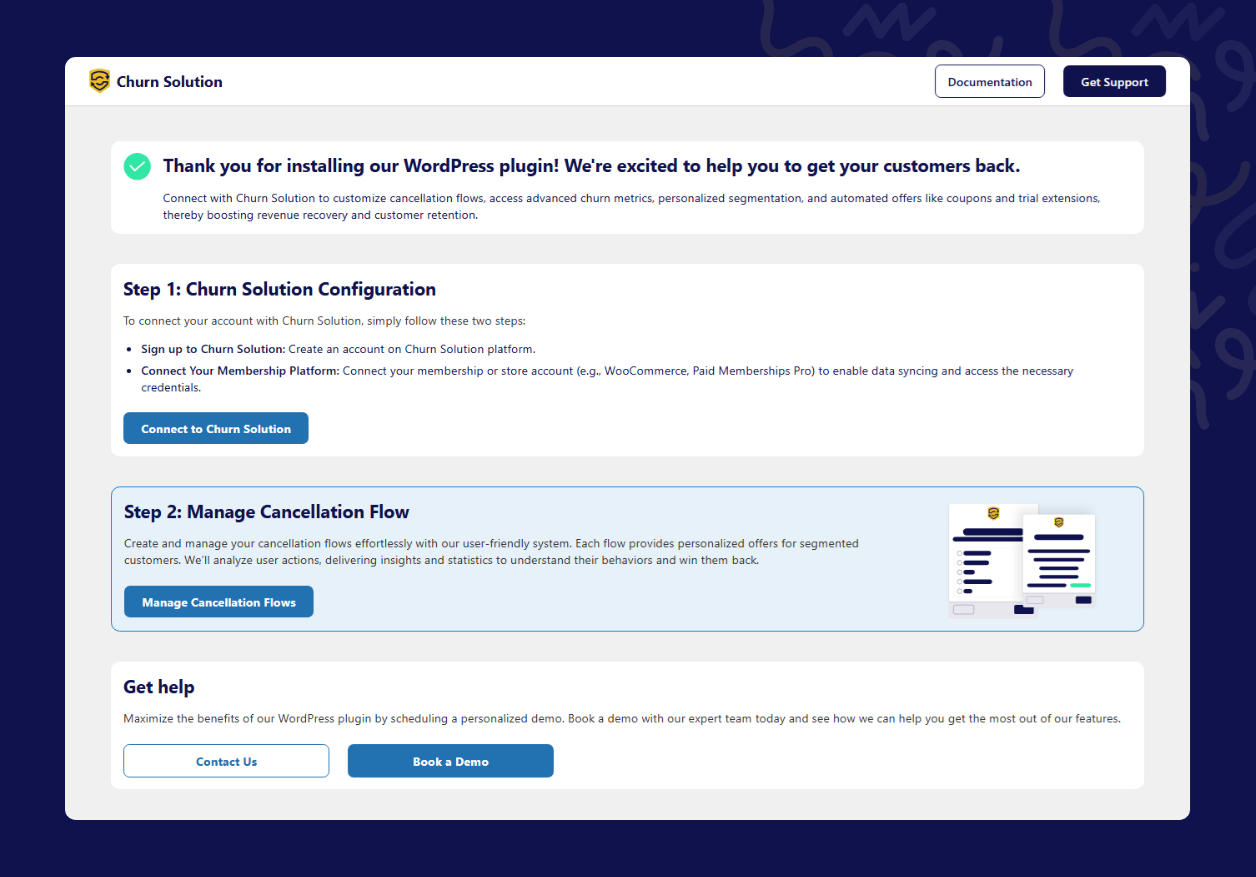
After activating the Churn Solution plugin, you are directed to the Churn Solution page, which asks you to complete the configuration and create your cancellation flows. Click Connect to Churn Solution; you are redirected to the signup form. Fill out the form to create your account.
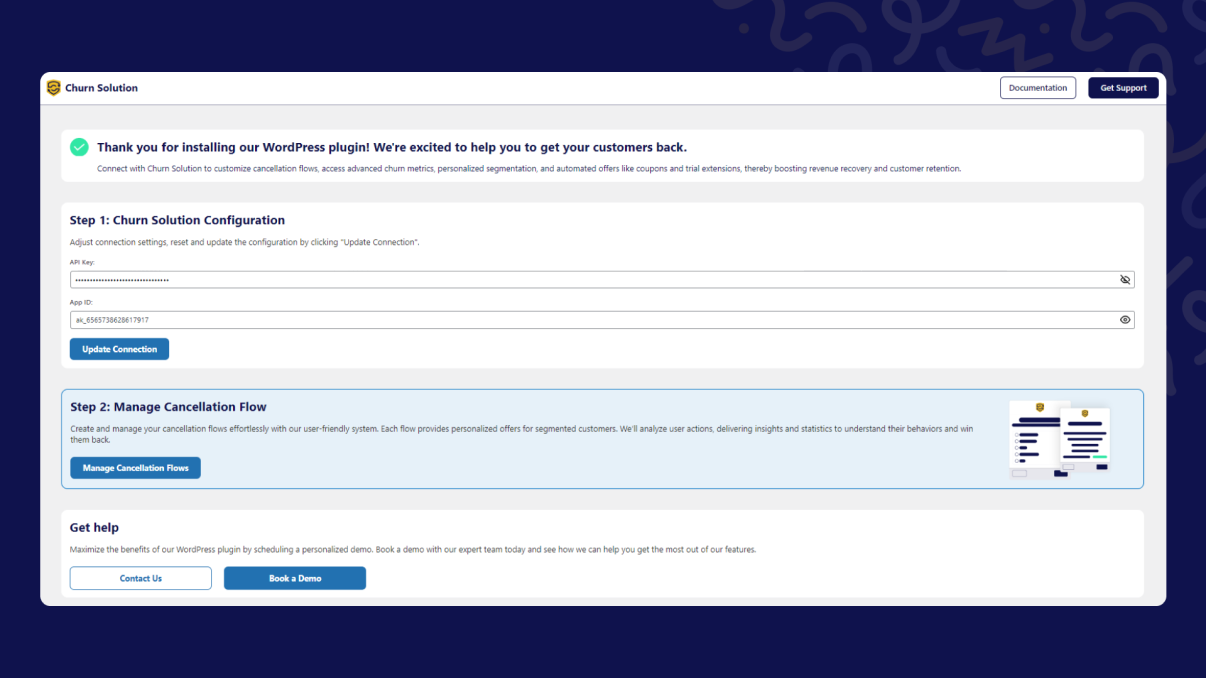
Once your account is created, you are prompted to connect your Churn Solution account to the same Stripe account linked with Paid Memberships Pro. This is important to let Churn Solution flows show for your customers.
Cancellation Flows on PMPro Supported
Churn Solution is the only retention tool that supports Paid Memberships Pro — a no-code integration in two steps: connect your account, then build and publish your flows. The flow replaces the standard PMPro cancel action; since billing runs through Stripe, Stripe offers apply.
Integration steps
No code required. Paid Memberships Pro is a no-code integration: install the plugins, connect your account, build your flows. The flow replaces PMPro's default cancel action automatically.
- Connect your account
Install the Paid Memberships Pro and Churn Solution plugins, click Connect to Churn Solution and link the same Stripe account PMPro uses — see How to connect PMPro and Churn Solution above.
- Create and publish the cancellation flow
Open Cancellation Flows and input your requirements or choose a pre-set template, then publish. It is applied to your site directly — see the Flow builder page.
Offers available on PMPro
- ✓ Pause subscription
- ✓ Apply discount
- ✓ Switch plan
- ✓ Switch plan with offer
- ✓ Extend free trial
- ✓ Contact support (email / WhatsApp)
- ✓ Send to a page
How PMPro is used with Churn Solution
Customer experience
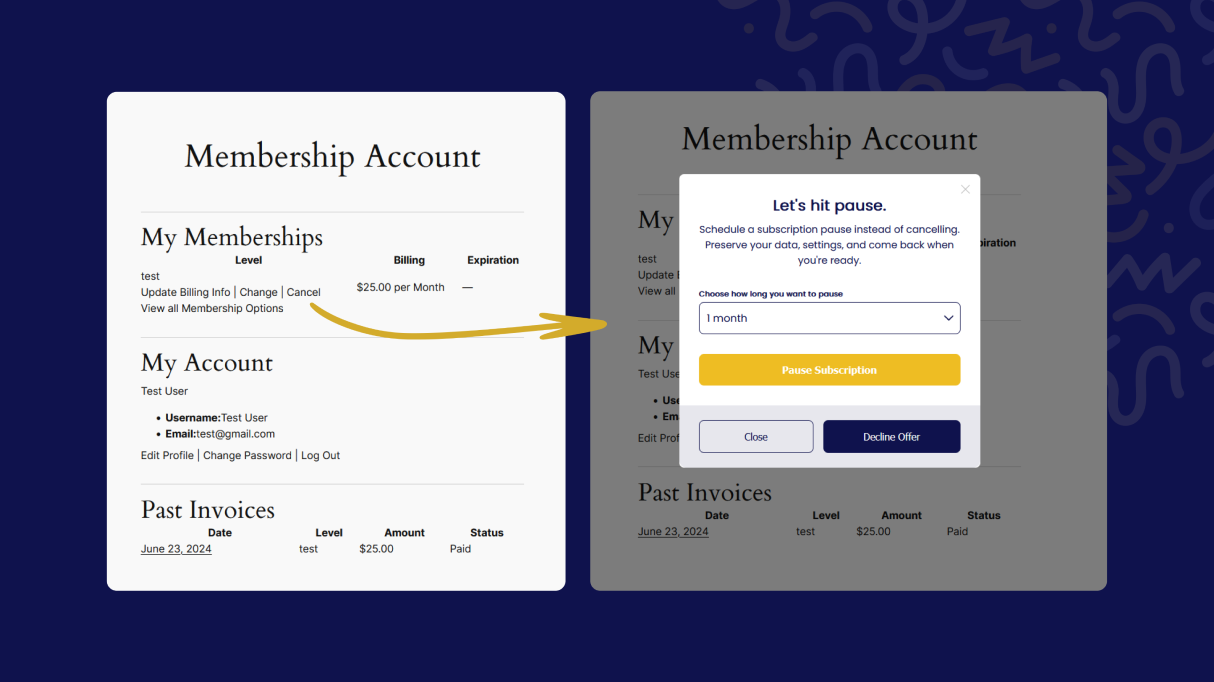
After your customers click the Cancel CTA, they see the cancellation flows you have set up, designed to win them back.
Dashboard insights
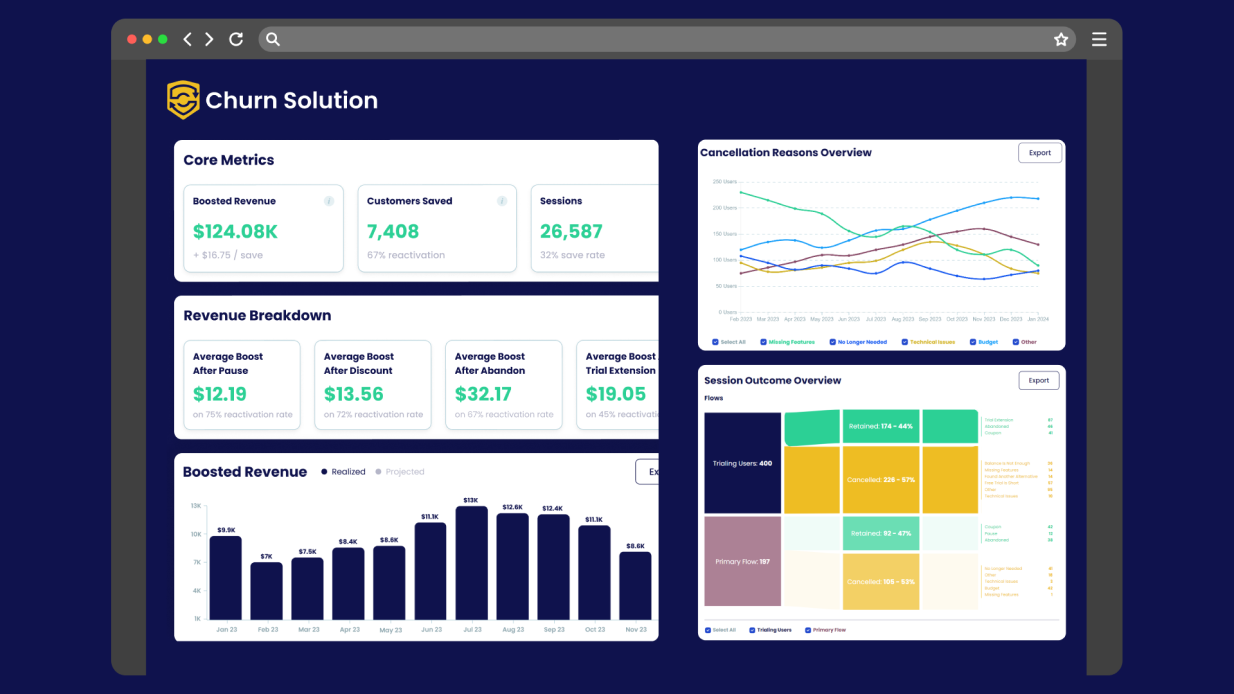
On the Churn Solution site you can track cancellation sessions, revenue generated, and various statistics related to your cancellation flows through the dashboard.
Reduce churn on your Paid Memberships Pro site
With the plugin installed, a member who clicks Cancel is no longer cancelled on the spot. They see a cancellation flow, on your own site, that offers an alternative — such as moving to a cheaper membership level — and collects the reason they are leaving along with any written feedback. Every cancellation session is logged, and the Churn Solution dashboard reports sessions, reasons, feedback and retained revenue. You can test one flow against another and show different flows to different customer segments.
What this covers on Paid Memberships Pro
The plugin handles voluntary churn through cancellation flows. It does not retry failed payments or send dunning emails on this platform. Involuntary recovery on a Paid Memberships Pro site comes from two sources: Stripe Smart Retries, running in your own Stripe account, and Paid Memberships Pro's built-in recurring payment reminder email, sent before each renewal charge. If failed payments make up most of your churn, address those two first.
Which save offers work on Paid Memberships Pro
Offering a pause at the cancel click is not a safe choice: Paid Memberships Pro describes pausing as not fully supported, and it has to be handled manually at the gateway. The strongest built-in alternative is moving the member to a cheaper level. With the Proration add-on, the member pays nothing at checkout and keeps their current access until the end of the period they already paid for. Build the flow around a level change and a reason question, not a pause.
Payment Recovery on PMPro Supported
Dunning emails and smart retries run against the Stripe account behind PMPro. The Pause Wall and Failed Payment Wall need no code: contact the team and we enable and configure them for your site.
Integration steps
- Install and connect the plugin
If your site is not connected yet, install the Paid Memberships Pro and Churn Solution plugins and connect your account — see How to connect PMPro and Churn Solution above. Failed payments are detected automatically once connected.
- Set up dunning emails
Contact the team with the domain you want to use for emails and the recovery pages; we set it up via DNS. Then pick a template, build your email sequence and publish it — it is applied to your site directly. See Dunning emails.
Contact our team - Turn on smart retries
Enable retries in the dashboard and Churn Solution re-attempts each failed payment at the times most likely to succeed — see Smart retries.
- Add the Failed Payment Wall
Enable the wall in the dashboard and publish; the plugin applies it to your site with no code — see Pause Wall & Payment Wall.
Reactivation Campaigns on PMPro Supported
Win-back campaigns for lapsed members, segmented by cancellation reason, with Stripe coupons.
Integration steps
- Install and connect the plugin
If your site is not connected yet, install the Paid Memberships Pro and Churn Solution plugins and connect your account — see How to connect PMPro and Churn Solution above. Cancelled members are imported automatically once connected.
- Set up your sending domain
Contact the team with the domain you want to use for emails and the reactivation pages; we set it up via DNS.
Contact our team - Create the campaign
Build the campaign in the dashboard: choose the segment, attach a coupon, set the schedule and publish — it runs directly, no code needed. See Campaign builder and Segments & offers.